
Using Stream to 3D with Valve Steam Frame
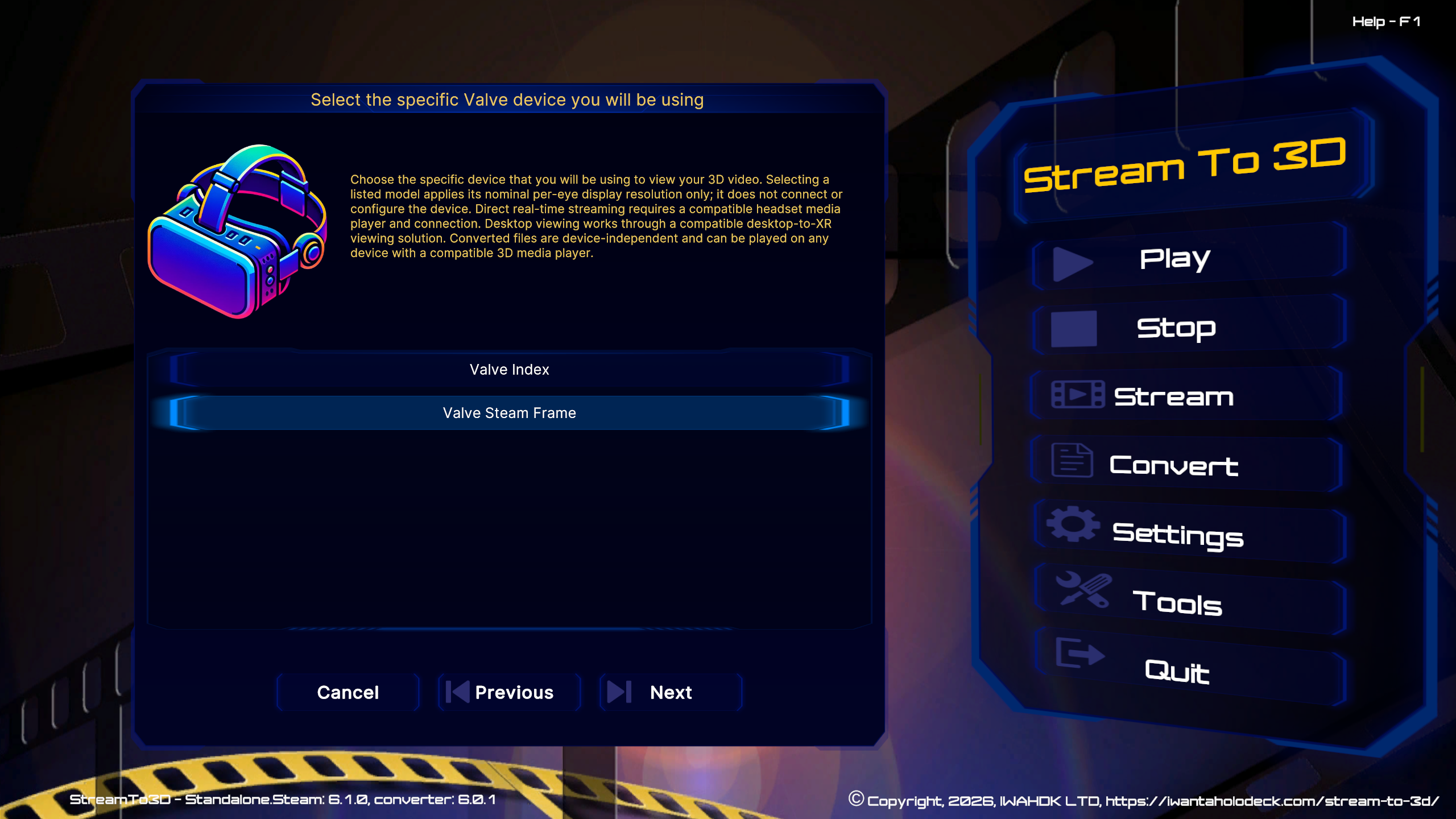
Steam Frame has arrived, and Stream to 3D already includes a Steam Frame preset in its Configuration Wizard.
Stream to 3D runs on your Windows PC and produces standard stereoscopic video. A compatible PC VR player supplies the cinema or viewing environment, so there is no separate Steam Frame edition of Stream to 3D and no proprietary Stream to 3D headset player to install.
Does Stream to 3D support Steam Frame?
Yes. Valve Steam Frame is supported in the Stream to 3D Configuration Wizard. Select Valve → Valve Steam Frame when choosing the headset you will use.
Valve describes Steam Frame as a headset built primarily for low-latency streaming from a PC, with SteamVR and OpenXR compatibility. That makes the established Windows PC route the natural starting point. See Valve's Steam Frame documentation for the current PC connection model.
How it works
2D video
    ↓
Stream to 3D
    ↓
SBS / Top-Bottom 3D
    ↓
Bigscreen on SteamVR
    ↓
Valve SteamVR streaming
    ↓
Steam Frame
Stream to 3D converts. Your player plays. Your display displays.
Explore Stream to 3D
Establish a stable Steam Frame PCVR connection first
Real-time Stream to 3D playback through Bigscreen depends on the complete PCVR connection as well as the conversion. Valve recommends the included wireless adapter as the normal low-latency PC route. Connect it to USB 3 and, where possible, position it with a clear path to the headset rather than behind a metal PC case. A short USB extension can help with positioning.
The Steam Frame community has identified several useful checks for particular symptoms:
- Adapter disconnects or fails after a reboot: in Windows Device Manager, find the Steam Frame adapter under Network adapters, open Properties > Power Management, clear Allow the computer to turn off this device to save power, then restart Windows. Change the adapter setting first rather than disabling power management across every USB device.
- Regular stalls while Multi-Link checks Wi-Fi: temporarily test with Multi-Link off and verify that the direct adapter is still the active route. Some users report a major improvement; others report that disabling it caused the headset to fall back to ordinary Wi-Fi, so restore it if the direct route is not retained.
- Severe latency on a PC SteamVR beta: compare the current public SteamVR branch. Valve's setup documentation recommends beta branches for the latest Steam Frame updates, but one well-supported community report found that returning only the PC SteamVR installation to the public branch removed serious latency. Treat this as a version-specific troubleshooting test, not a permanent rule.
- PC and headset will not establish streaming: check that security software permits Steam and SteamVR network traffic. Do not disable the firewall as a general fix.
These are community troubleshooting observations, not settings every owner should change. Apply only the check that matches the symptom and change one thing at a time. Read the original How I solved all my problems with my Frame post and comments for the owners' current experience, and use r/SteamFrame for broader community discussion. Valve's Steam Frame setup guide remains the authority for the current supported setup.
How do I watch 2D video in 3D on Steam Frame?
Bigscreen on Steam is the clearest first route because its current Steam page documents SteamVR headset support and Side-by-Side and Over-Under 3D from the Windows desktop.
Before launching Bigscreen: in SteamVR, turn off Settings → Advanced Settings → Dashboard → Present Non-VR Applications on Theater Screen Upon Launch. Otherwise SteamVR may place a second curved desktop in front of Bigscreen and obscure the intended Bigscreen view. See the illustrated Bigscreen setup note.
- Connect Steam Frame to the Windows PC and start the normal SteamVR streaming route.
- Launch Bigscreen Beta on the PC through SteamVR and show the Windows desktop in its VR environment.
- Open Stream to 3D, choose Play, and select a short, familiar 2D video.
- In the Configuration Wizard, choose Valve → Valve Steam Frame and keep the recommended settings for the first test.
- Start playback, then select the matching SBS or Over-Under/Top-Bottom mode in Bigscreen.
Stream to 3D's large controls are intended to remain readable while the Windows desktop is viewed inside a headset. You can therefore select content and control the conversion from within the Bigscreen desktop view instead of repeatedly removing the headset.
Start with one short source and confirm smooth playback, audio and the correct 3D layout before a longer session.
Can I use Bigscreen with Stream to 3D?
Yes. Stream to 3D supplies the stereoscopic Windows output and Bigscreen supplies the VR viewing environment. The two applications have separate jobs. This is an established Stream to 3D workflow: the demonstration below shows real-time 2D-to-3D conversion playing in Bigscreen's SteamVR cinema environment.
Bigscreen on SteamVR setup
- Install Bigscreen Beta from Steam on the Windows PC.
- Connect Steam Frame using the normal SteamVR streaming route.
- Launch Bigscreen Beta through SteamVR. Bigscreen runs on the PC and presents its Windows desktop in the headset.
- Open Stream to 3D on the PC, choose Play, select the 2D video and use the Valve Steam Frame Wizard preset.
- Start playback and make the converted video full-screen on the Windows desktop.
- In Bigscreen, open the desktop's 3D Setting and select SBS or OU to match the Stream to 3D output.
Bigscreen Remote Desktop is not required for this SteamVR workflow. It is the separate Windows companion used when the Bigscreen app runs independently on a standalone Meta Quest headset.
For this desktop route, use Half SBS or Half OU/TB in Stream to 3D. Bigscreen's SBS and OU desktop modes interpret those half-resolution layouts; do not select Full SBS for this workflow. Half SBS is the format used in the established demonstration below.
Bigscreen's on-screen keyboard is available through Tools & Toys. Its Windows Key + Tab control is useful for switching between Stream to 3D and the media player without removing the headset. Return Bigscreen to 2D before switching applications so the ordinary Windows desktop remains easy to read, then re-enable the matching 3D mode for the video.
The video below shows the complete established workflow: entering Bigscreen's Sci-Fi cinema, playing a video being converted by Stream to 3D, and enabling the SBS desktop view.
For broader playback information, see the original Bigscreen playback demonstration or the dedicated Stream to 3D with Bigscreen guide.
Which SteamVR media players support SBS and Top-Bottom 3D?
The players below document the required PC VR interface and stereoscopic formats.
| Player | Stereo formats | Typical use with Stream to 3D |
|---|---|---|
| Bigscreen | SBS and Over-Under | Play through the Windows desktop |
| Whirligig | SBS and Over-Under | Converted-file or PC VR playback |
| SKYBOX VR | SBS and Over-Under | Converted-file playback |
| HereSphere | Stereoscopic VR video | Converted-file playback |
Player features and headset compatibility can change. Check the player's current Steam page before purchase or setup, and test a representative short source before converting a library.
Bigscreen running locally on Steam Frame
Steam Frame can also run some Windows and Android applications locally through its compatibility system. Steam Frame owners report installing Bigscreen locally and using it for ordinary and 3D cinema viewing. This is different from the real-time PCVR route above:
- Bigscreen on the Windows PC: use Stream to 3D Play, with Valve's PCVR stream carrying Bigscreen and the converted Windows desktop to Steam Frame.
- Bigscreen running locally on Steam Frame: use Stream to 3D Convert, copy a completed compatible MP4 to Steam Frame storage, then open that file in Bigscreen.
Local playback reports are mixed for different players, codecs and high-resolution files, so this guide does not yet present local Bigscreen as a universal replacement for the PCVR route. Start with a short Half SBS or Half Top-Bottom MP4 and confirm video, audio, frame rate and stereo mode before converting a longer programme. See Valve's Steam Frame compatibility documentation for how non-native applications can run on the headset.
PC Screen and network streaming
Stream to 3D runs on the Windows PC. If you want to convert ordinary PC content, its PC Screen Live Source can use a Windows display as the input to Play, Stream or Convert, subject to the selected edition and workflow. Stream to 3D is not currently a native Steam Frame system-wide conversion filter.
This documents the PC-screen video route; it does not claim that automated audio routing or synchronized PC Screen + Audio through Bigscreen SteamVR has been comprehensively validated. Follow the player-specific guidance for the route you are testing.
Stream to 3D can also send converted stereoscopic video over HTTP or another documented protocol to a compatible receiving player. See Network Streaming for the current model and tested receiver examples. A native Steam Frame player has not yet been proved to consume that Stream to 3D HTTP stream.
Play, Stream or Convert
- Play: convert immediately on the PC and view the stereoscopic Windows desktop through a compatible PC VR environment such as Bigscreen.
- Stream: send converted stereoscopic video to a compatible player or device over the local network.
- Convert: create a reusable SBS or Top-Bottom file for a compatible player, including a locally installed Steam Frame player where compatibility has been confirmed.
Steam Frame does not change these workflows. It adds another compatible display target to an approach that already separates conversion from playback.
Temporal or Depth Guided
Release 6 provides the established Temporal method and the newer AI-assisted Depth Guided method. For real-time use, let the Configuration Wizard assess the selected source and PC. For offline conversion, choose the method whose result you prefer. See Choosing Temporal or Depth Guided Conversion.
Before you start
- Use the Steam Frame preset as a starting point, not as an automatic headset connection.
- Prove ordinary Steam Frame PCVR streaming before adding real-time conversion.
- Begin with a short source and a Half SBS or Half Top-Bottom layout.
- Select the same 3D layout in Stream to 3D and the viewing app.
- If the result stutters, separate Stream to 3D conversion performance from the SteamVR transport: first use the Wizard recommendation, then test ordinary PCVR streaming without conversion.
- If real-time playback is not sustainable, create a reusable MP4 with Convert and test local playback.