
Use Stream to 3D with Bigscreen VR
Stream to 3D can convert ordinary 2D video on a Windows PC while Bigscreen provides the VR viewing environment. Bigscreen is not a required proprietary player: it is one compatible route for viewing the standard stereoscopic desktop output produced by Stream to 3D.
For all currently documented player and display routes, see Players and 3D Displays.
How the Bigscreen route works
2D video or Live Source → Stream to 3D Play → converted Windows desktop → Bigscreen → VR headset
Stream to 3D performs the conversion. The Windows media player opened by Play displays the packed stereo image. Bigscreen presents that desktop in a virtual room and interprets the two views using its 3D display mode.
Bigscreen Beta is available on both Meta Quest and Steam, but the desktop route differs. On a standalone Quest headset, Bigscreen's current Remote Desktop route requires its Windows companion, the same Bigscreen account on both devices and a suitable local-network connection. On a SteamVR PCVR setup, Bigscreen runs through the Windows PC and presents the PC desktop through the established PCVR route; Bigscreen Remote Desktop is not required for this SteamVR route. In both cases, Stream to 3D continues to run on Windows; it does not move the conversion workload into the headset.
Before using Bigscreen through SteamVR
With the headset awake and SteamVR fully active, open SteamVR Settings. Show the advanced settings if necessary, select Dashboard, then turn off Present Non-VR Applications on Theater Screen Upon Launch.
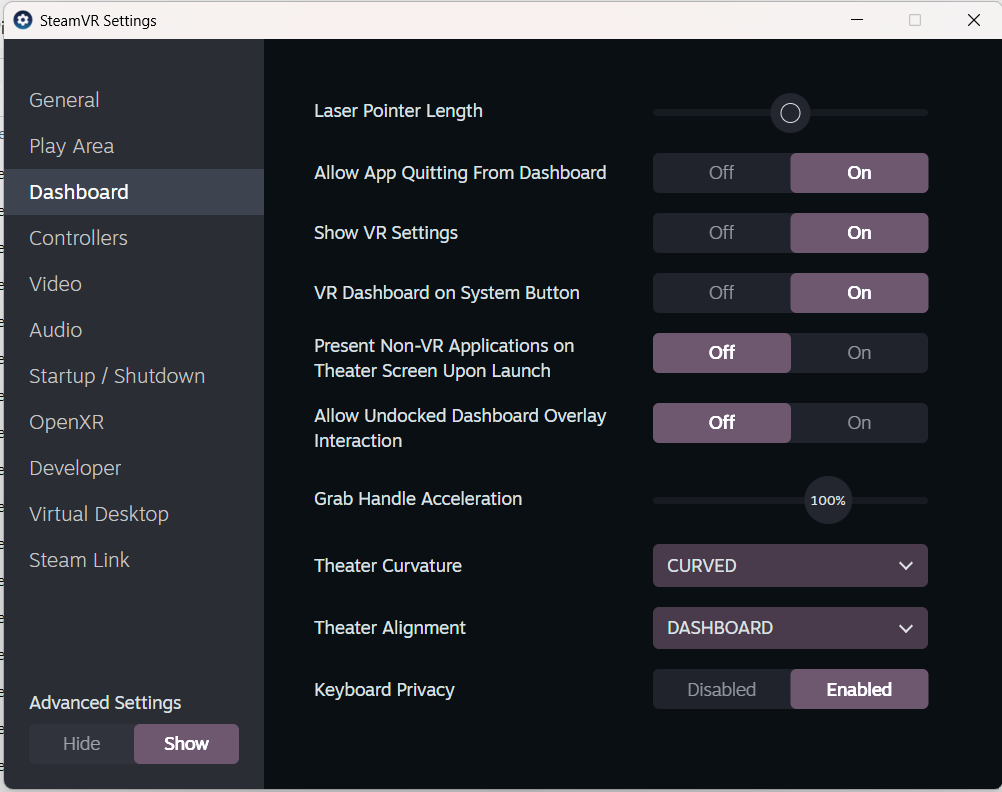
On the setup tested by Stream to 3D, the Dashboard option was only visible while the headset was active. If the option is missing, wake or put on the headset, make sure SteamVR is fully active, and check the Dashboard settings again. This setting applies to the Bigscreen SteamVR/PCVR route, not Bigscreen running independently on a standalone headset.
Quick start
SteamVR/PCVR: install Bigscreen Beta from Steam on the Windows PC, connect the headset through its normal SteamVR route, then launch Bigscreen through SteamVR.
Standalone Meta Quest: install Bigscreen on the headset and follow Bigscreen's Remote Desktop instructions to install and connect its Windows companion.
- Open Stream to 3D on the Windows PC and choose Play.
- Select a short, familiar 2D video for the first test.
- In the Configuration Wizard, choose the intended headset and either Compare and recommend or the conversion method you intentionally want to test.
- Select a half SBS or half TB/OU output supported by the current Bigscreen desktop view. Half SBS is a useful first test.
- Start Play and make the converted Windows media-player view full-screen.
- In Bigscreen, show the Windows desktop and select the 3D mode that matches Stream to 3D's output.
- Return Bigscreen to 2D mode before navigating ordinary desktop windows.
Bigscreen's desktop 3D modes use Half SBS and Half OU/TB for this workflow, not Full SBS. If the left and right views remain beside or above one another, Bigscreen is still displaying the desktop in 2D or the selected split does not match. If the picture is stretched, recheck half SBS versus half TB/OU and return the screen aspect ratio to its normal setting.
Social viewing
On the standalone Quest route, Bigscreen's Remote Desktop controls include an option to share the desktop with other people in the room. Bigscreen on SteamVR has its own PCVR room and desktop controls. The Play route can therefore support social viewing when the host's desktop, room and audio are configured correctly. Everyone involved remains responsible for the rights and platform terms that apply to the material being shown.
Desktop sharing is different from synchronized local-file playback. The verified Stream to 3D route on this page shares the converted Windows desktop; viewers do not each need a separately converted file.
Temporal or Depth Guided
Release 6 provides the established Temporal method and the newer AI-assisted Depth Guided method. Bigscreen does not decide which conversion method Stream to 3D uses. For real-time Play, use the Wizard to compare suitable choices against the selected source, output and PC. Temporal remains the better route whenever it is the sustainable recommendation; Depth Guided is not mandatory.
Optional NVIDIA acceleration can make Depth Guided practical on more compatible PCs, but Bigscreen desktop encoding and network delivery add their own work. Judge the complete viewed result, not one component in isolation.
Live PC screen and capture sources
A PC screen, camera or supported capture device can replace the video file when Live Sources is available. Use Play, not Stream, when Bigscreen is showing the converted Windows desktop. For PC-screen capture, keep the source display and converted output on separate Windows display surfaces to avoid capturing the converted image again. They do not inherently need to be physical monitors: when Virtual Desktop is also being used as the PCVR transport, its Windows virtual monitor can provide the second surface. Otherwise use two physical displays or another Windows-visible display surface supported by the chosen PCVR setup.
See Live Sources for the source-creation steps. This page documents the Bigscreen video path; PC Screen + Audio through Bigscreen SteamVR has not yet received the same end-to-end validation as the current Virtual Desktop and Quest route. Do not treat Virtual Desktop-specific audio-routing instructions as Bigscreen instructions.
Converted-file playback
Stream to 3D can also create a reusable SBS/TB file through Convert. Compatible MP4 output has been played in Bigscreen from headset storage; Bigscreen's standalone video player does not use Stream to 3D's default MKV route.
Create one short MP4 sample first, copy it to headset storage, then confirm video, audio and the selected stereo layout in Bigscreen before converting a longer programme. This is separate from the desktop Play route: Bigscreen opens the finished converted file itself rather than showing a Windows media player.
Bigscreen running locally on Steam Frame
Steam Frame owners report that Bigscreen can be installed on the headset and used for ordinary and 3D cinema viewing. For Stream to 3D, treat this as a converted-file route, not the real-time Windows desktop route:
- Use Stream to 3D Convert to create a short compatible MP4 in Half SBS or Half Top-Bottom.
- Copy the completed file to Steam Frame storage.
- Open it in the locally installed Bigscreen application and select the matching stereo mode.
Community reports are currently mixed for local players, codecs and high-resolution files. Test a short sample before converting a library. For current owner experiences, read How I solved all my problems with my Frame and the wider Steam Frame community. The main real-time route remains Bigscreen on the Windows PC through SteamVR.
Troubleshooting
- Second curved desktop or Bigscreen seems frozen: turn off Present Non-VR Applications on Theater Screen Upon Launch in SteamVR's advanced Dashboard settings.
- No desktop in Quest standalone Bigscreen: confirm that the PC and headset meet Bigscreen's current Remote Desktop requirements, use the same account and can see one another on the local network.
- Steam Frame PCVR stalls, disconnects or has excessive latency: prove ordinary SteamVR streaming first, then work through the symptom-specific direct-adapter, power-management, Multi-Link, refresh-rate and SteamVR-branch checks in the Steam Frame guide.
- Double image: select the matching half SBS or half TB/OU mode in Bigscreen.
- Playback stutters: run the Stream to 3D Wizard again for the exact source and settings, then test ordinary Bigscreen desktop streaming without Stream to 3D so conversion performance and PCVR transport performance are diagnosed separately.
- Local Steam Frame file will not play smoothly: try a short MP4 in a Half layout before increasing resolution. Local application and codec compatibility is distinct from the Windows PCVR route.
- Protected video is black: some services block desktop capture. Stream to 3D cannot bypass source or operating-system content protection.
- Friends cannot see the desktop: check Bigscreen's current room and desktop-sharing control.
Continue evaluating Stream to 3D
For setup questions, use the User FAQ and troubleshooting guide. When you are ready to compare access options, see editions and purchase options.