
Stream to 3D Release 6: Two Conversion Methods and Faster Depth Guided Processing
Release 6 adds AI-assisted Depth Guided conversion alongside Temporal, built-in comparative performance analysis and optional NVIDIA acceleration.
Stream to 3D Release 6 adds a second 2D-to-3D conversion method and makes the Configuration Wizard more useful for choosing settings that suit the selected source and Windows PC.
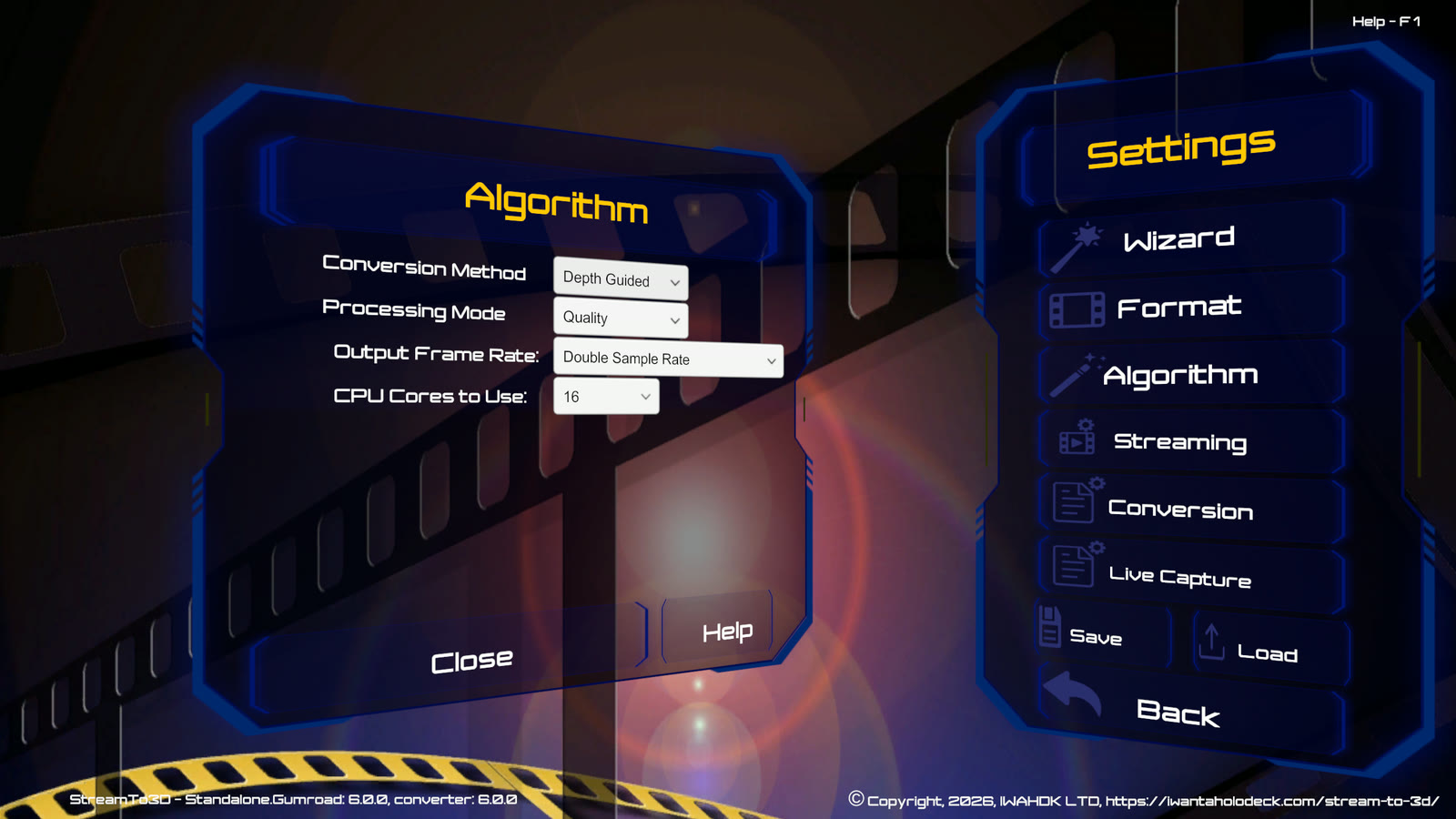
The established Temporal method remains available for efficient real-time conversion across a broad range of hardware. The new AI-assisted Depth Guided method processes visual depth cues locally on the PC, providing a different stereoscopic result that can also work with static and low-motion scenes. The method is named Depth Guided throughout the application.
Detailed feedback from an existing Stream to 3D user
Okeb purchased Stream to 3D in January 2026 and was already an active user before Release 6. Following extensive use of Depth Guided and the NVIDIA optimisation introduced in Release 6.1, he shared a detailed account of his experience, including watching complete films in Depth Guided Quality.
“Before Depth Guided I used Stream to 3D regularly and already enjoyed what it could do. But after this AI update, and especially after the optimization in 6.1, my usage has genuinely changed. Now I basically want to use Depth Guided for everything.”
Read full Release 6/6.1 user feedback
Two conversion methods
- Temporal remains the lighter method and the broadest route to real-time Play and Stream.
- Depth Guided offers Quality and Performance processing modes and uses substantially more graphics processing.
- Both methods work with video files and Live Sources through the applicable Play, Stream and Convert workflows.
- Neither method is universally best. Results depend on the source, hardware, output route and viewing preference.
Video processing remains local to the Windows PC. Stream to 3D does not upload customer video for conversion.
Smarter real-time recommendations
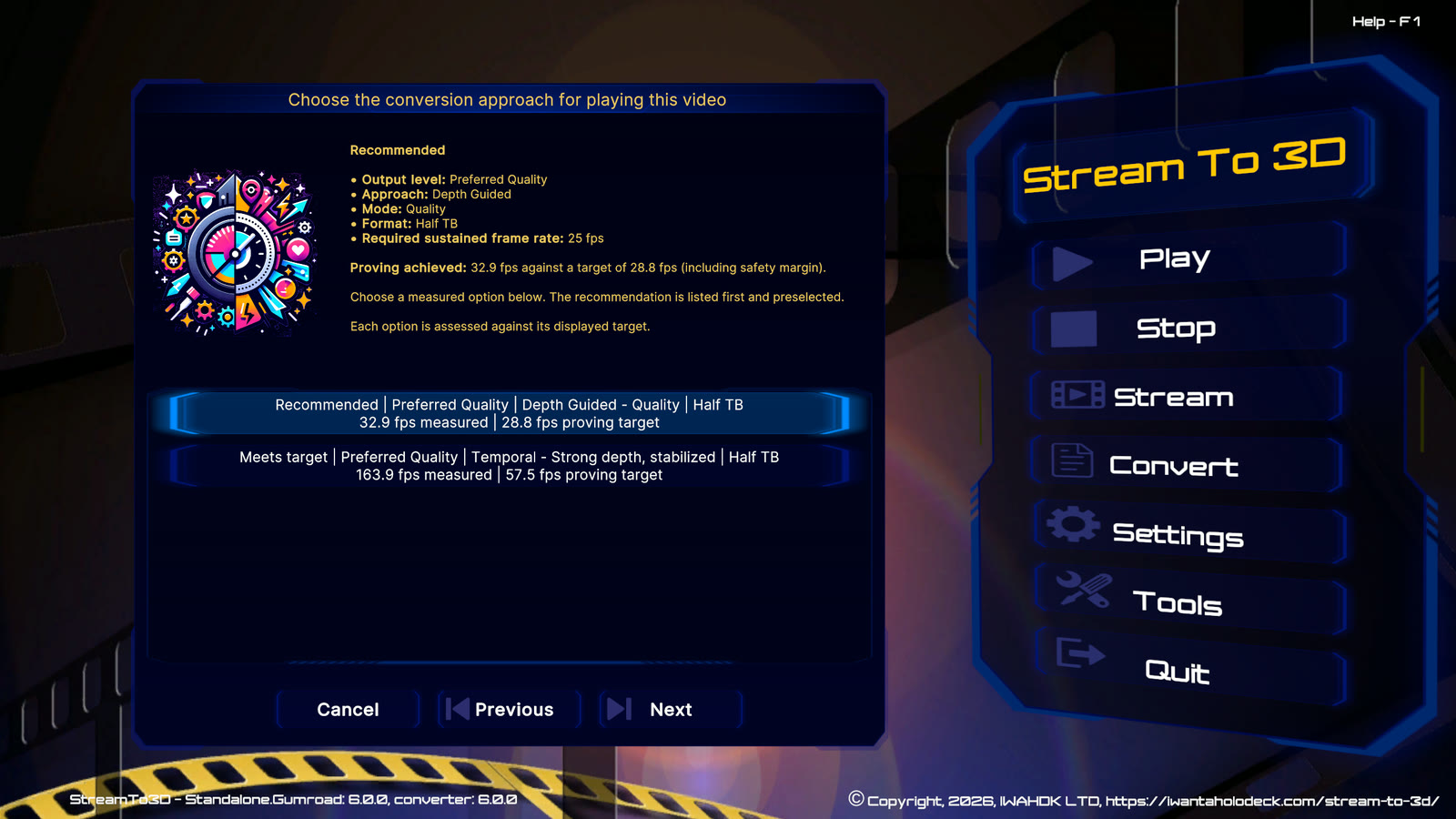
For Play and Stream, the Configuration Wizard measures a quality-ranked set of useful Temporal and Depth Guided options using the selected source and current settings. It stops when it has enough evidence to recommend an option that the complete workflow can sustain.
The recommendation is shown with the nearest measured alternative, allowing an informed choice without requiring every possible configuration to be tested. Stream is measured separately because network encoding adds work beyond playback.
If you do not want to wait for comparative proving, you can select Temporal or Depth Guided directly. A direct selection applies the chosen method and preferences without claiming that the resulting configuration has been performance-proven. Comparative proving remains the best starting point when real-time performance is uncertain.
Convert does not require real-time performance. A Depth Guided file conversion can therefore complete more slowly than the source video's running time.
Files and Live Sources
Depth Guided can be used with ordinary video files, PC screens, cameras and capture devices. Live Source Play and Stream are checked against the source's real-time capture rate. Live Source Convert can complete below real time.
Using a Live Source requires the Live Sources feature. Using the Depth Guided method also requires Depth Guided feature access.
Feature access
Complete and Real-Time subscriptions include Depth Guided. Existing Standalone owners, including existing Steam owners, may require the corresponding feature upgrade. Do not purchase an upgrade unless Stream to 3D reports that the feature is not enabled for the applicable licence or Steam account.
Hardware and performance
Temporal conversion continues to provide the broadest real-time hardware coverage and does not require a high-end AI-capable GPU. Depth Guided uses local GPU acceleration and is more demanding. For Play and Stream, Stream to 3D measures the selected source and complete workflow instead of relying only on a generic hardware label.
Optional NVIDIA acceleration
The current Release 6 build can use optional NVIDIA acceleration for Depth Guided conversion on compatible Windows 11 PCs with recent RTX graphics. Stream to 3D asks before downloading the optional component, retains the standard compatible Depth Guided path when it is not used and continues to provide Temporal conversion across broader hardware.
Real-time Depth Guided performance has been proven on 1080p material using RTX 2000 Ada class GPUs and above, with near-real-time performance proven on RTX 30-series GPUs.
These are source-specific results rather than guarantees for every video or workflow. The Configuration Wizard measures the actual source and PC when real-time performance matters. If Depth Guided does not meet a real-time target, Convert can still create a reusable stereoscopic file for later playback. See Optional NVIDIA Acceleration for Depth Guided for requirements, setup and fallback guidance.
Further Release 6 improvements
Refined Temporal processing
Release 6 refines fractional-frame Temporal depth behavior and strengthens handling around detected scene transitions. Temporal retains its adjustable depth and stabilization controls while remaining the lighter conversion method.
Improved stereo presentation
For affected cinematic aspect ratios, Release 6 improves how the two eye views are fitted before final Side-by-Side or Top/Bottom packing. This helps compatible desktop-to-XR viewing routes retain consistent eye alignment when an ordinary media player adds display borders.
Improved local-network streaming
Streaming setup now improves active network-address selection, validates the selected port and uses more appropriate encoder bitrate and buffer settings. The installer configures a local-subnet Windows Firewall rule for the normal Stream port. Network quality and receiving-player support still affect the final result, so AVC remains the compatibility-first choice when a receiver handles HEVC inconsistently.