
Choosing Temporal or Depth Guided Conversion
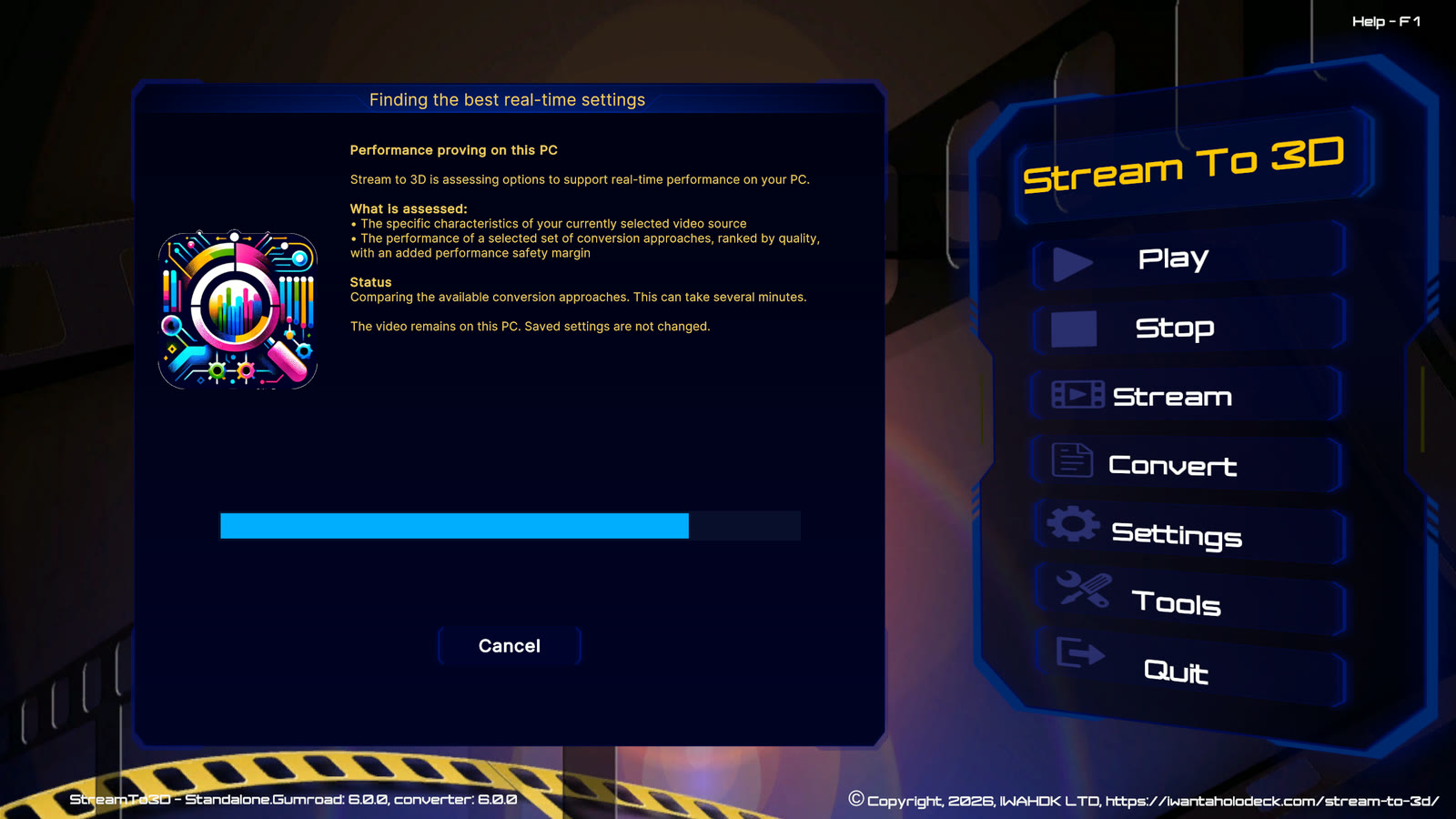
Stream to 3D Release 6 provides its established Temporal method and an AI-assisted Depth Guided method. Both process video locally on the Windows PC. For Play and Stream, the Configuration Wizard can compare compatible choices for the selected source and PC, or apply the method you select directly.
The two methods
| Method | Best starting point | Performance |
|---|---|---|
| Temporal | Broad hardware compatibility, immediate playback and footage with useful motion. | Lower processing demand and the widest real-time coverage. |
| Depth Guided | Static or low-motion scenes, and users who prefer its per-frame depth result. | Uses local GPU processing; real-time use depends on the measured source and settings. |
Neither method is universally best. A higher measured frame rate is a performance result, not an image-quality score. Compare representative footage in the intended headset, display or player before deciding which result you prefer.
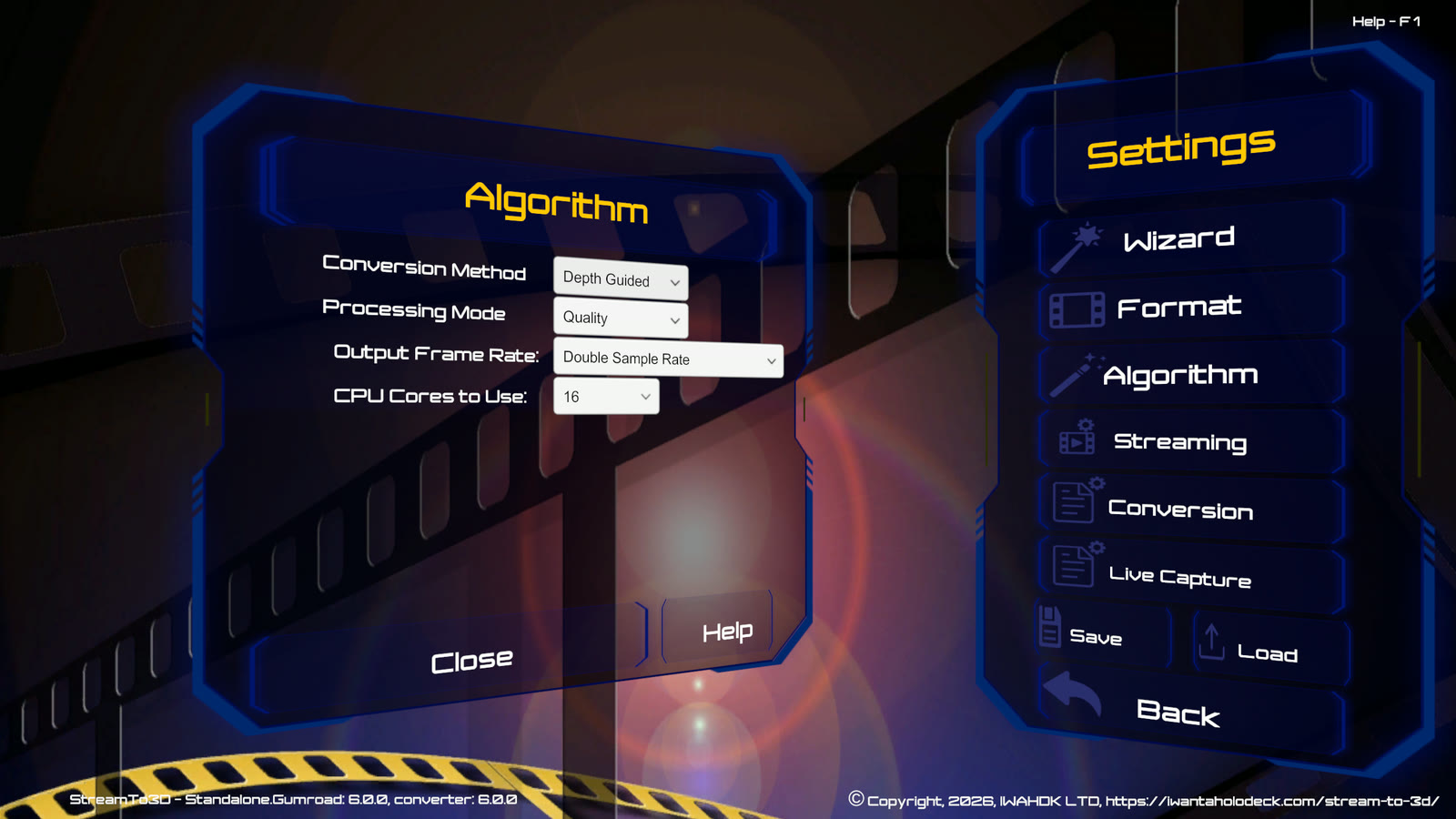
The output frame rate does not identify the conversion method. Either method can be followed by output-rate interpolation when a higher output rate is selected. Confirm the method in the Wizard report or the Algorithm section of the main status screen.
How the Wizard decides
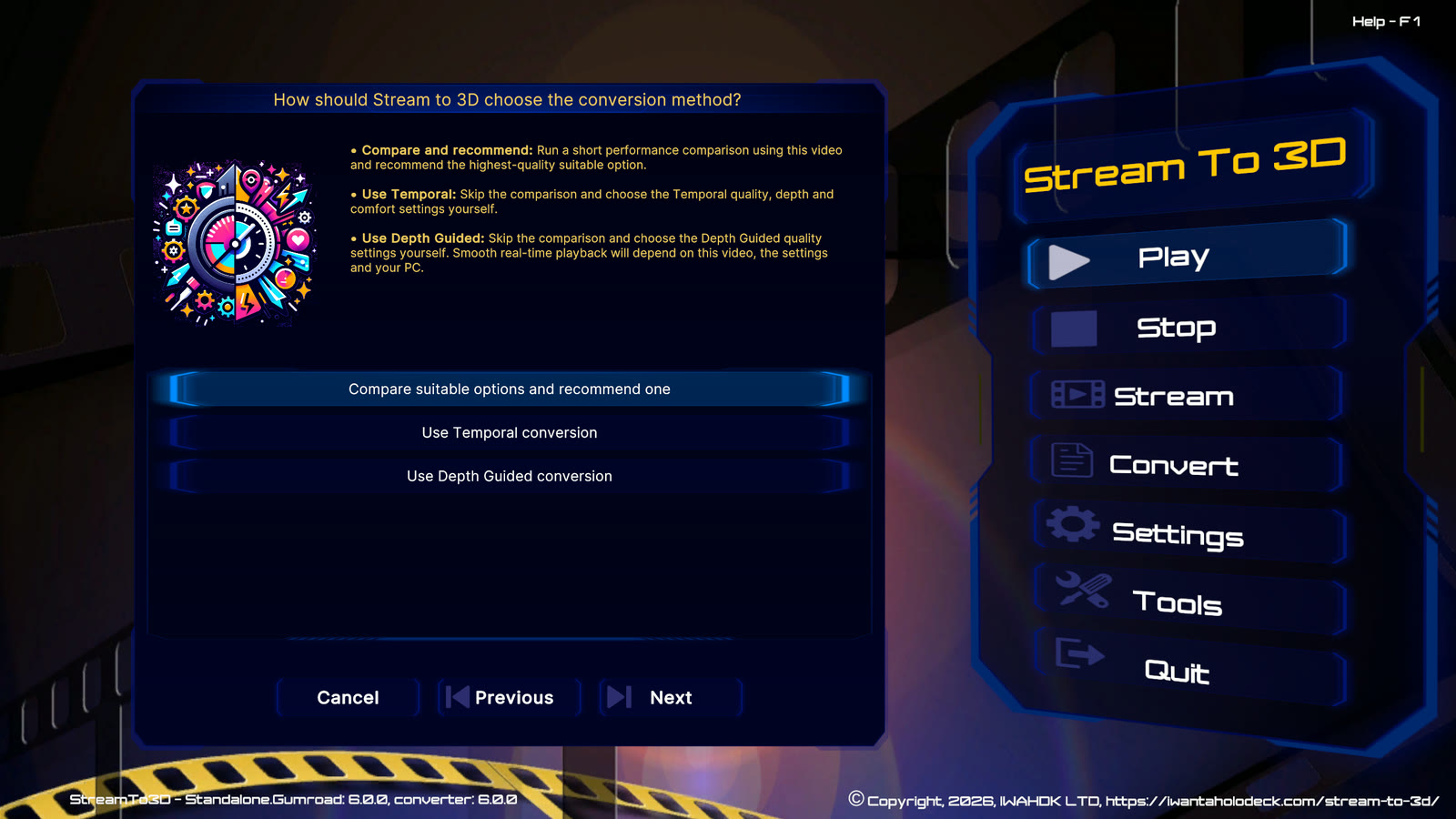
Choose Compare and recommend when you want the Wizard to test a quality-ranked sequence rather than every possible combination. It begins with high-quality Depth Guided and Temporal candidates and moves to lighter options only when necessary. Testing stops once enough evidence exists to make a useful recommendation.
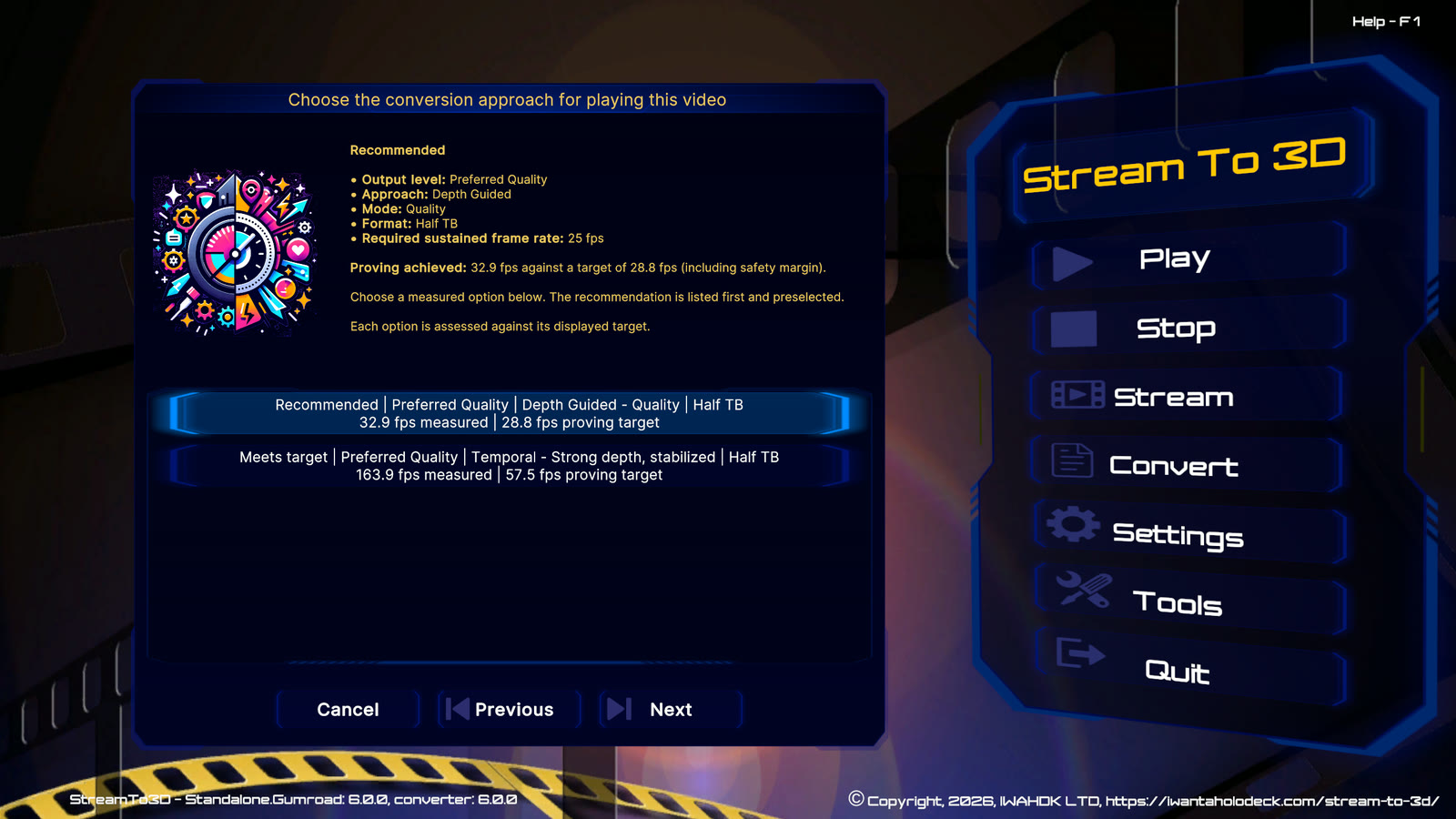
The result identifies the recommended option and the nearest measured alternative. Stream is checked separately from Play because network encoding adds work. The safety margin allows for normal performance variation after the short measurement. A near-target result may change between runs as current PC load, power mode and temperature change; repeat the check under representative conditions rather than treating one short result as a permanent rating of the PC.
If Depth Guided is not enabled, installed or usable on the current PC, the Wizard evaluates the available Temporal choices without presenting unavailable Depth Guided profiles.
Wizard modes
- On: asks whether Play or Stream should Compare and recommend, Use Temporal, or Use Depth Guided. Compare and recommend runs the short performance comparison. A direct method choice skips proving and applies the selected method and quality settings.
- Auto: reuses the last saved policy separately for Play and Stream. A saved Compare and recommend policy runs the comparison automatically; a saved direct method applies its saved quality settings without proving. If no policy has been saved, Auto starts with Compare and recommend.
- Off: uses the current manual settings from the Settings dialogs directly and does not run performance proving.
Direct Depth Guided use still requires feature access, the installed Depth Guided component and compatible graphics support. Stream to 3D reports a missing prerequisite rather than substituting Temporal without explanation.
Selecting a method directly
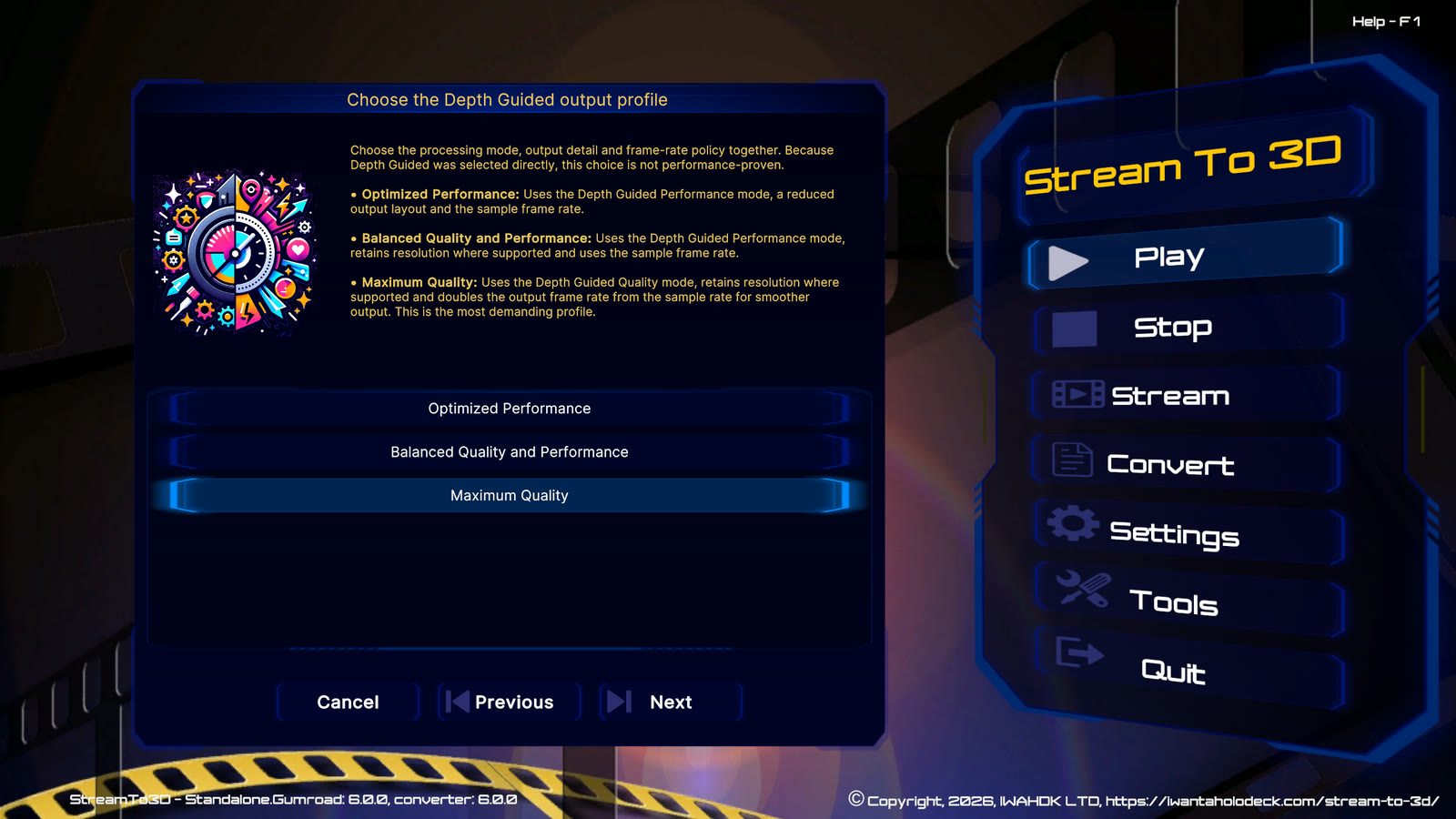
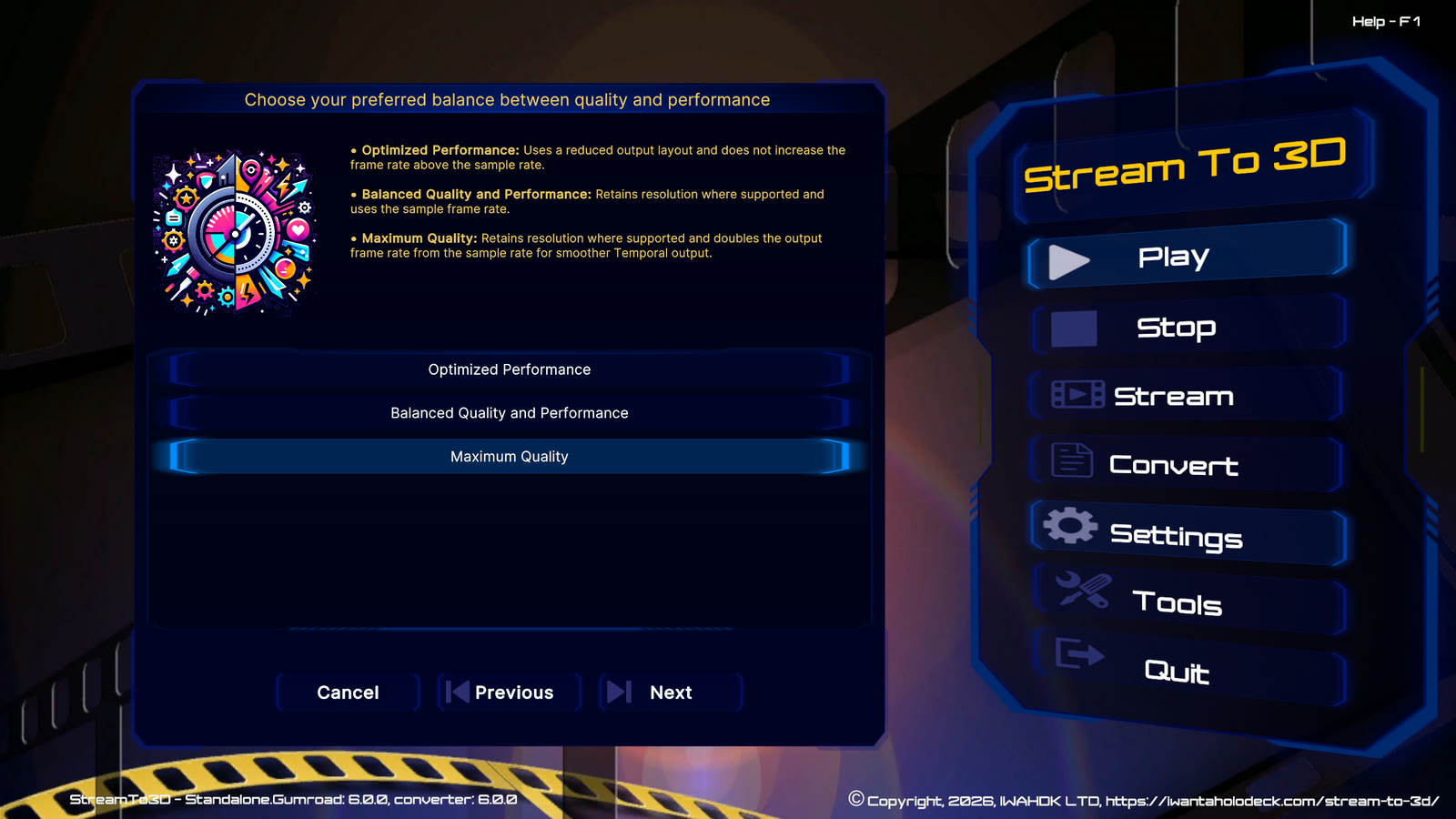
Use Depth Guided asks for its Quality or Performance processing mode. Use Temporal asks for the preferred quality, depth and comfort/stabilization settings. These choices configure the selected method; they do not claim that it has met the real-time target for the current source.
Read the Wizard report
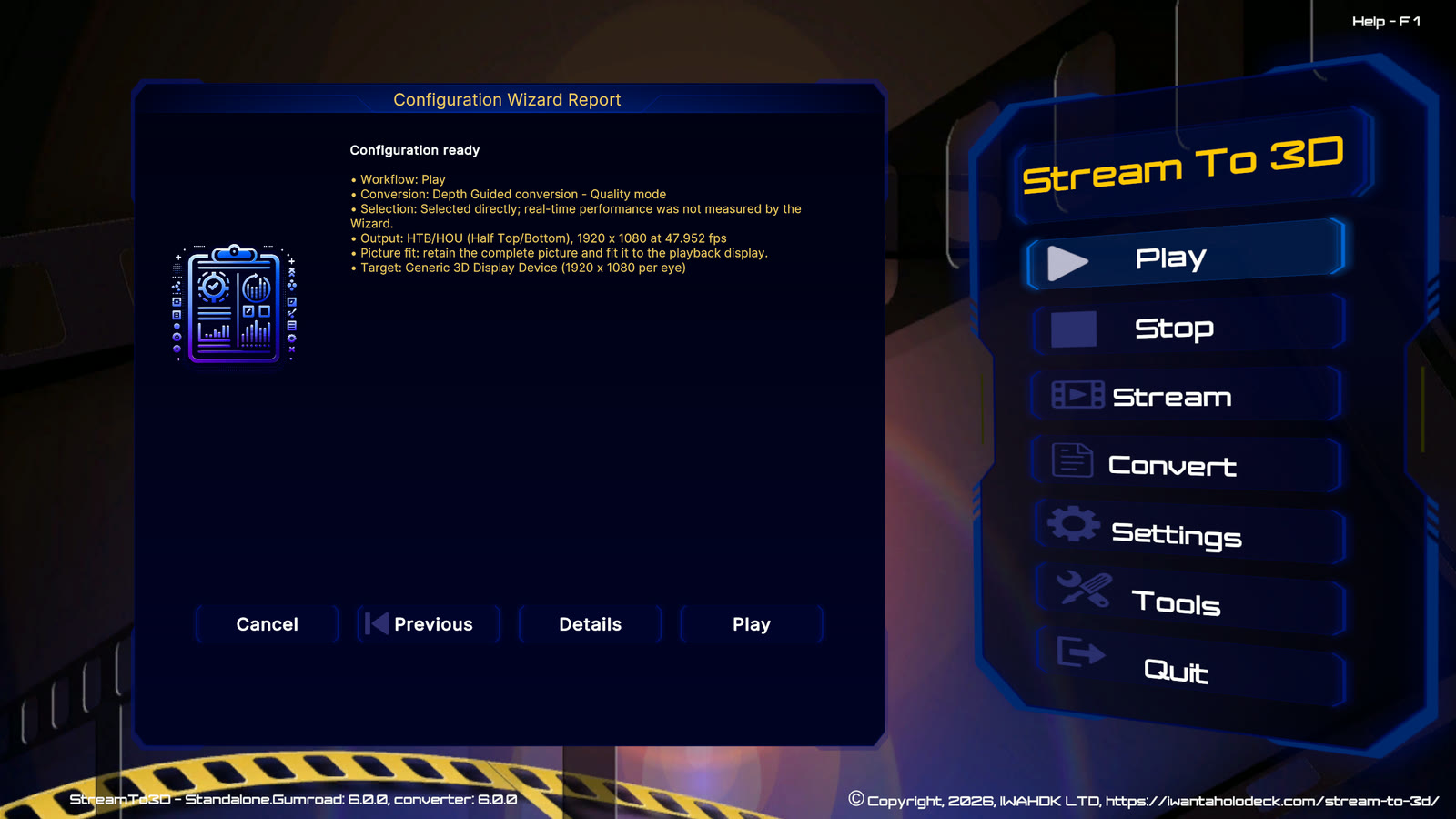
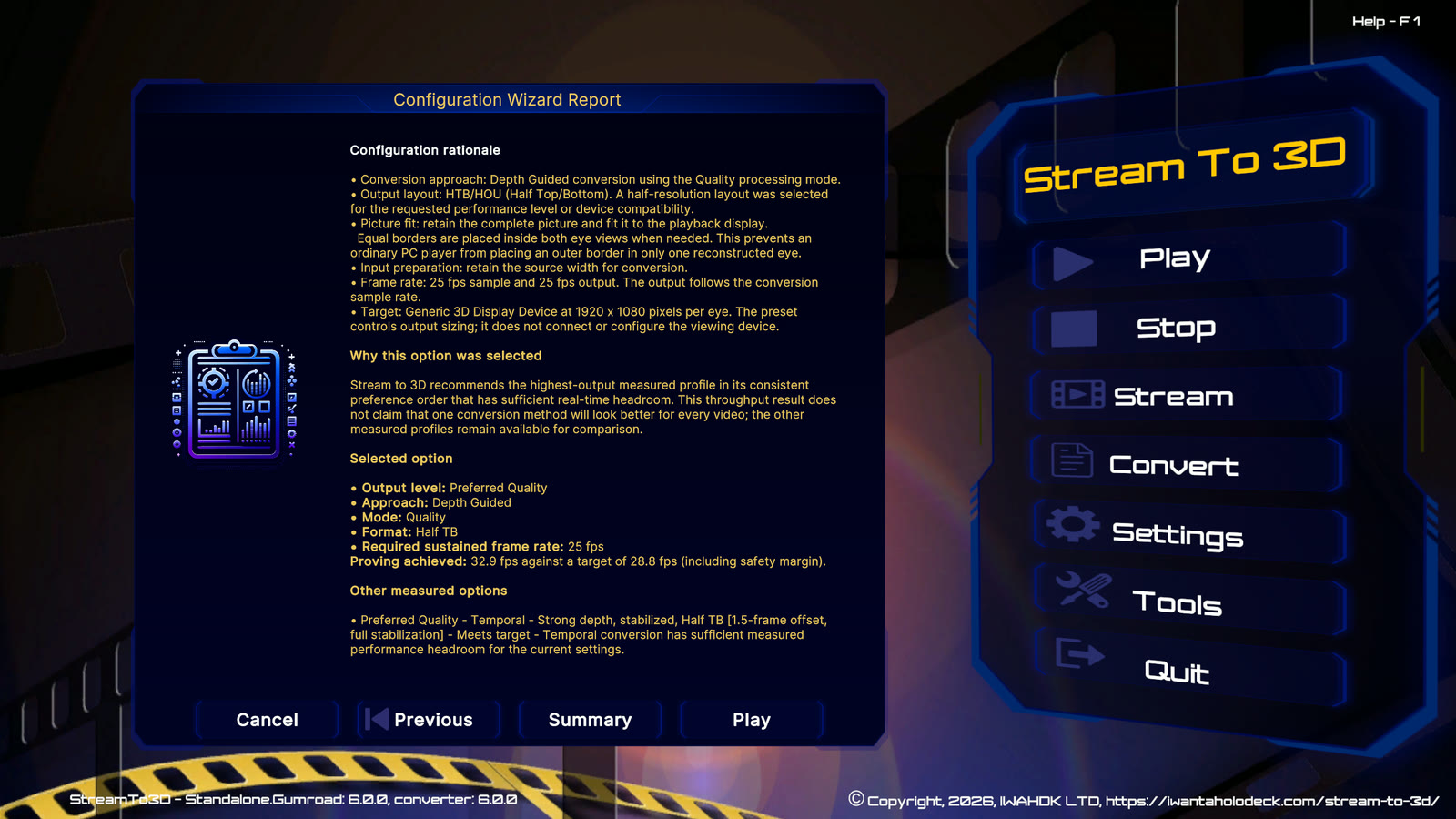
The summary reports the selected workflow, conversion method, output format, resolution and output frame rate. A Compare and recommend result also records whether the choice met the measured real-time target. A direct method choice is identified as selected rather than performance-proven.
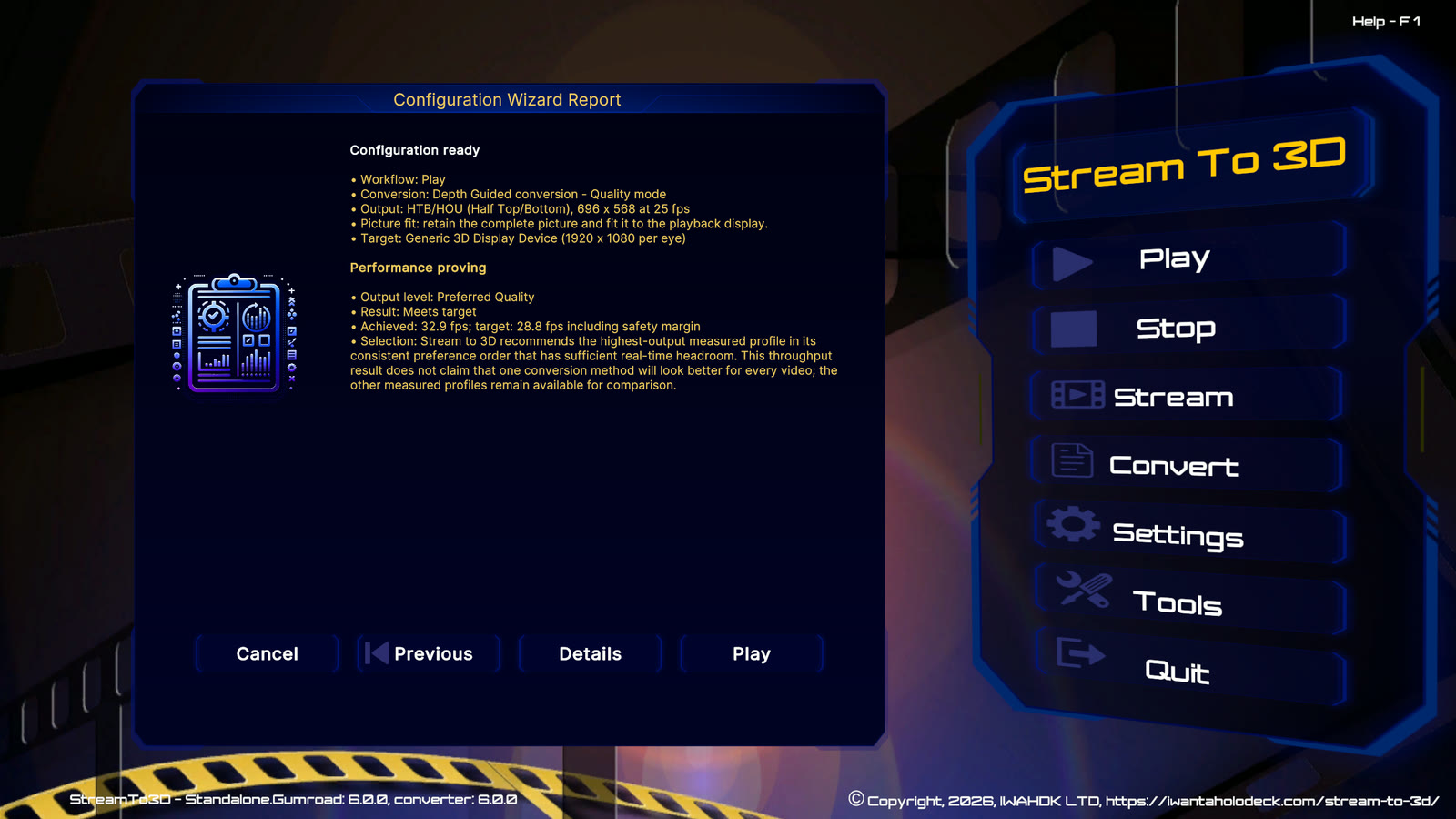
Select Details when you want the source characteristics, performance rationale, player/display decisions and the other measured option. The measured frame rates compare processing capacity; they are not scores for perceived 3D quality.
Play
Play must keep pace with the source. The recommendation is based on the selected video or Live Source, output layout, resolution, frame-rate target and complete conversion workload. A laptop should be connected to mains power while measuring and playing demanding sources.
Stream
Stream must sustain conversion and network encoding. A successful PC-side result does not prove the receiving player's decoder or the network connection. Use a stable local network, preferably with the Windows PC connected by Ethernet where practical, and use the current URL shown by Stream to 3D.
Convert
Convert does not need to keep pace with the source. Temporal or Depth Guided can therefore be selected even when processing will take longer than the video. Conversion time also depends on output resolution, frame rate, encoder and the number of simultaneous jobs.
Live Sources
Cameras, capture devices and PC screens supply frames in real time. With Compare and recommend selected, Play and Stream check whether the selected configuration can keep pace with that capture rate. A direct method choice skips proving. Changing the Live Source definition, device format or important output settings can require a new comparison the next time Compare and recommend is used.
Using Depth Guided with a Live Source requires both feature capabilities. File conversion remains the simpler first workflow for learning the product.
Optional NVIDIA acceleration
On a compatible Windows 11 PC with recent RTX graphics, the current Release 6 build can offer optional NVIDIA acceleration for Depth Guided conversion. It does not add another conversion method or processing mode. Stream to 3D asks before downloading it, and the standard compatible Depth Guided path remains available if it is not installed or cannot start.
The Wizard includes the available acceleration path in its practical measurement of the selected Play or Stream workload. Convert can use the same acceleration without requiring real-time performance. See Optional NVIDIA Acceleration for Depth Guided.
Manual settings
Use Settings > Wizard to select Off before relying on manual settings. Then choose the conversion method under Settings > Algorithm. Temporal displays its offset, scene-change and stabilization controls; Depth Guided displays its Quality or Performance processing mode. Shared sample-rate, output-rate and processor settings remain visible for both. Manual Play and Stream use these settings directly without performance proving.