
Welcome to Stream to 3D
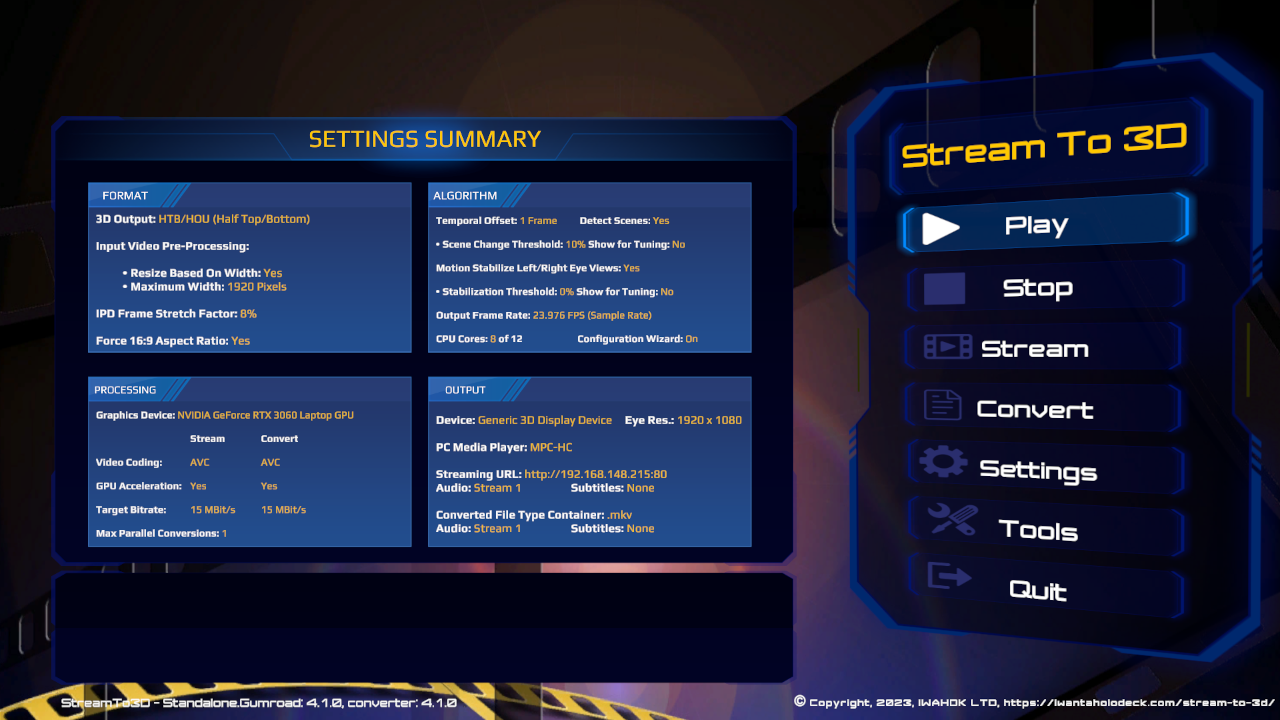
Use this page if the Stream to 3D installer has just finished, or if you have installed the application but are not sure what to do next.
Stream to 3D is a Windows application for watching ordinary 2D video as stereoscopic 3D. It can play in real time, stream to compatible players or devices, convert files for later viewing, and use supported live sources such as a webcam or PC screen. The established Temporal method is designed for broad hardware coverage. Release 6 also adds AI-assisted Depth Guided conversion for compatible graphics hardware.
Find and launch Stream to 3D
- Steam: launch Stream to 3D from your Steam library. Steam may also provide a desktop shortcut depending on your Steam settings.
- Gumroad and Itch.io: if you accepted the default installer location, the application is installed at
C:\Program Files\StreamTo3D\StreamTo3D.exe. If you changed the destination folder during setup, use that folder instead. - Shortcut: Gumroad and Itch.io installs may not create a desktop shortcut automatically. You can create your own shortcut to
StreamTo3D.exeif you want one.
First launch
On first launch, Stream to 3D opens full screen. This is intentional for common VR desktop and mirrored-display setups. Press Alt+Enter to switch between full-screen and windowed mode.
For a first test, use Play with a familiar 2D video file. If you are unsure which settings to choose, use the built-in Configuration Wizard and keep the recommendation until you have a known working result.
Updating to Release 6? Release 6 performs a one-time reset to verified Release 6 application and Wizard defaults. It retains your purchase, feature access, media and user-created Live Source files. Follow the Release 6 update guide before restoring manual preferences.
Setup expectations
Stream to 3D sits on top of your Windows video, display and media-player setup. The exact experience can depend on your video files, chosen player, codecs, graphics drivers, VR software, display mode, network path and capture devices.
That flexibility is useful, but it also means some systems need a small amount of setup. If something does not look right at first, it is usually worth checking the documentation route that matches the symptom before changing many settings at once.
Windows prompts and download warnings
For Gumroad and Itch.io installs, Windows may show standard prompts such as User Account Control or Microsoft Defender SmartScreen, especially for a newly downloaded installer. Only continue if you downloaded the installer from your official purchase page or from an IWAHDK-provided link.
The installer may also install or launch separately licensed supporting components that help with playback, conversion, codecs or media-player compatibility. Their installers and licences are separate from Stream to 3D itself.
If something is not right
- User FAQ & Troubleshooting - start here for common post-purchase issues.
- Tools and dependencies checklist - check supporting components and media players.
- It looks wrong - fix incorrect 3D layout, depth, aspect ratio or viewing mode.
- Licensing and activation - use this if activation, machine limits or add-on entitlements are involved.
- Error codes - look up LVE error codes.
- Logs and diagnostics - gather useful details before contacting support.
Before contacting support or reviewing
If you run into trouble, please contact support before concluding that your setup cannot work. Many problems are specific to a player, headset, video file, display mode, driver, dependency or store entitlement and can be diagnosed with the right details.
When asking for help, include your store or edition, Stream to 3D version, what you were trying to do, any visible error code, and the relevant logs if requested. Use the Support page for Discord, email and diagnostic guidance.
Next steps
- Documentation home - choose a workflow or troubleshooting route.
- Installation - review the installer and component setup flow.
- Settings - understand the main controls before changing advanced options.
- Live sources - use a supported webcam, PC screen or capture source.