
Windows 2D to 3D video software
Stream to 3D
Play, stream, convert or use a live source, with controls for the output format and target workflow.
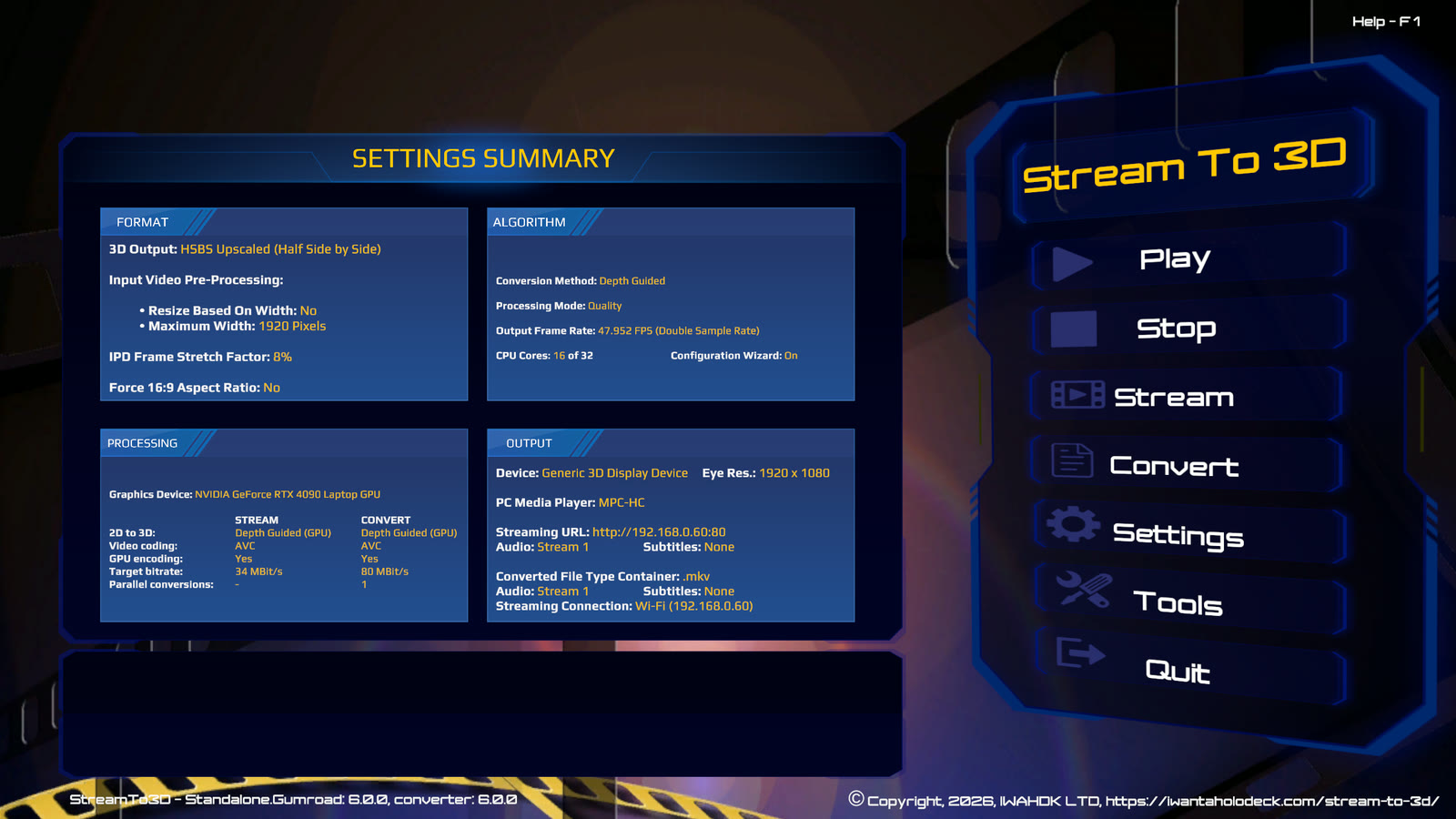
Stream to 3D lets you watch ordinary 2D video as stereoscopic 3D. Use it for VR headsets, XR glasses, 3D televisions, 3D projectors and compatible media-player setups.
Stream to 3D provides two complementary conversion methods. Temporal retains efficient real-time playback across a broad range of Windows hardware. AI-assisted Depth Guided derives stereo depth from visual content using compatible graphics acceleration. It is called Depth Guided throughout the application.
Open a video and play it in 3D straight away, send the converted stereoscopic result across your local network to a compatible receiving player, create 3D video files for later, or work with supported live camera and screen sources. Feature availability varies by edition.
Already purchased? Start with User FAQ & Troubleshooting. For help, see Support. For billing, cancellation and refunds, see Billing, Cancellation & Refunds.
Product overview
Bring your existing video library into 3D
Use Stream to 3D when you want a practical Windows tool for turning 2D video into a 3D viewing experience. Start with efficient Temporal playback, use Depth Guided on compatible graphics hardware, then move into streaming, file conversion, Live Sources and deeper output controls as your setup needs them.
Workflows
Pick the path that matches the job
Play
Watch a 2D video in 3D without preparing a separate converted file first.
Playback guideConvert
Create a 3D video file for later viewing, travel, device transfer or repeat playback.
Conversion docsStream
Send the converted stereoscopic result across your local network to a compatible receiving player.
Streaming docsLive sources
Convert supported screen, webcam and capture-device sources for live 3D viewing.
Live Sources guideViewing flexibility
Use the viewing setup that suits you
Stream to 3D produces conventional stereoscopic output for compatible media players, headsets, XR glasses, 3D displays and projectors. Depending on the workflow, watch through a Windows media player, mirror the converted desktop to a headset, open a reusable converted file, or receive the converted result as a local-network stream.
For Virtual Desktop or Bigscreen showing the converted Windows desktop, use Play. Use Stream when another compatible player will open the local-network stream produced by Stream to 3D.
Viewing targets
Built for common 3D viewing setups
- VR headsets
- PC media players
- 3D projectors
- 3D displays
- Anaglyph output
Editions
Choose by workflow and purchase preference
Subscription trial
Real-Time
Play-focused edition For users who want real-time 2D-to-3D playback and do not need file conversion or network streaming. Compare optionsFull suite
Complete
Play, Stream and Convert Subscription access for ongoing use across playback, network streaming and offline conversion. View store pageOne-off purchase
Standalone
Desktop purchase One-off purchase option available through Gumroad, Itch.io and Steam. See storesTwo conversion methods
Temporal uses motion across neighboring frames and remains the broadest route to real-time conversion. Depth Guided uses locally processed visual depth cues and can provide useful stereo depth in static and low-motion material. Neither is universally best for every source.
For Play and Stream, the Configuration Wizard measures suitable options using the selected source and current PC, then recommends a result with the nearest measured alternative. Convert can use either method without needing to keep pace with the source. See Choosing Temporal or Depth Guided Conversion.
Why Stream to 3D?
Stream to 3D combines real-time playback, offline conversion, streaming, PC screen capture and live-source conversion in one Windows application. Choose a workflow by what you want to do rather than committing every source to a long offline render.
| What you need | Stream to 3D approach |
|---|---|
| Watch immediately | Convert during playback without preparing a separate file first. |
| Keep a converted copy | Create a stereoscopic video file for later or repeated viewing. |
| Send output to another device | Use a network streaming workflow with a compatible receiving player. |
| Convert desktop content | Use a PC screen or selected screen region as a live source. |
| Use a camera or capture card | Create a reusable live source from a supported Windows video device. |
| Use modest hardware | Temporal real-time playback does not require a high-end AI-capable GPU. |
| Use visual depth cues | Depth Guided provides a second locally processed method on compatible graphics hardware. |
Hardware and performance
Temporal real-time playback is designed to work across a broad range of Windows hardware and does not require a high-end AI-capable GPU. Depth Guided is more demanding and uses compatible graphics acceleration. Source resolution, frame rate, output format and player configuration affect both methods.
On compatible Windows 11 PCs with recent RTX graphics, the current Release 6 build can use optional NVIDIA acceleration to materially increase Depth Guided processing capacity. Other compatible graphics hardware retains the standard Depth Guided path, and Temporal remains the broader lower-demand route. See Optional NVIDIA Acceleration for Depth Guided.
Measured real-time Depth Guided
Real-time Depth Guided performance has been demonstrated on suitable 1080p material using RTX 2000 Ada class GPUs and above, with near-real-time performance demonstrated on an RTX 30-series laptop. These are tested, source-specific results rather than minimum-hardware guarantees.
The Configuration Wizard measures the selected source and complete Play or Stream workload on the current PC. If a preferred Depth Guided configuration cannot maintain real time, choose a measured alternative or use Convert to create the stereoscopic file without a real-time deadline.
Try real-time playback for one week and let the Configuration Wizard assess your own source and PC. Encoding acceleration for Stream and Convert is separate from the conversion method. Use the performance guide for the practical trade-offs.
What the result is
Stream to 3D generates stereoscopic 3D from ordinary 2D material for immediate viewing, reusable converted files, network output and live-source conversion. Results vary with the source, conversion method and viewing route, so use the matched examples to judge the output directly. Processing takes place locally on the PC rather than through a cloud conversion service.
Control the 3D result
Stream to 3D gives you practical controls for the viewing setup you are targeting, including side-by-side, top-and-bottom and anaglyph output modes, resolution and frame-rate choices, depth-related settings and workflow presets.
Your video processing happens on your Windows machine. The application is designed for people who want to experiment with their own viewing equipment and tune the result for a headset, display, projector or media player.
For demanding sources or higher output settings, use the performance guidance to choose a good balance between smooth playback, output format and visual result.
Start here
New users should compare editions on the Store, then read the Documentation home and Playback guide. Existing users can go straight to the User FAQ or Support.