
Stream to 3D Performance Guide
This page explains how Stream to 3D Release 6 assesses real-time performance and the quickest changes that improve Play, Stream and Live Source smoothness. Convert does not need to keep pace with the source and can therefore use settings that take longer to process.
If you see an LVE0xx error code, start with Licensing & Activation and Error Codes.
Start here
- Use the Configuration Wizard for Play or Stream so the selected source and complete workflow can be measured on the current PC.
- Connect a laptop to mains power before proving or using a demanding real-time configuration.
- If a real-time choice misses its target, try the recommended lighter output-rate, processing-mode or resolution candidate.
- If Play or Stream still cannot stay smooth, use Convert when the edition includes it. Offline conversion removes the real-time deadline.
- For Stream, separate PC processing, network delivery and receiver/player decoding when diagnosing a problem.
Measured real-time recommendations
Processor names, core counts and GPU labels do not reliably predict the complete result. Release 6 measures a quality-ranked set of useful Temporal and, when available, Depth Guided candidates using the selected source, output layout, output rate and workflow.
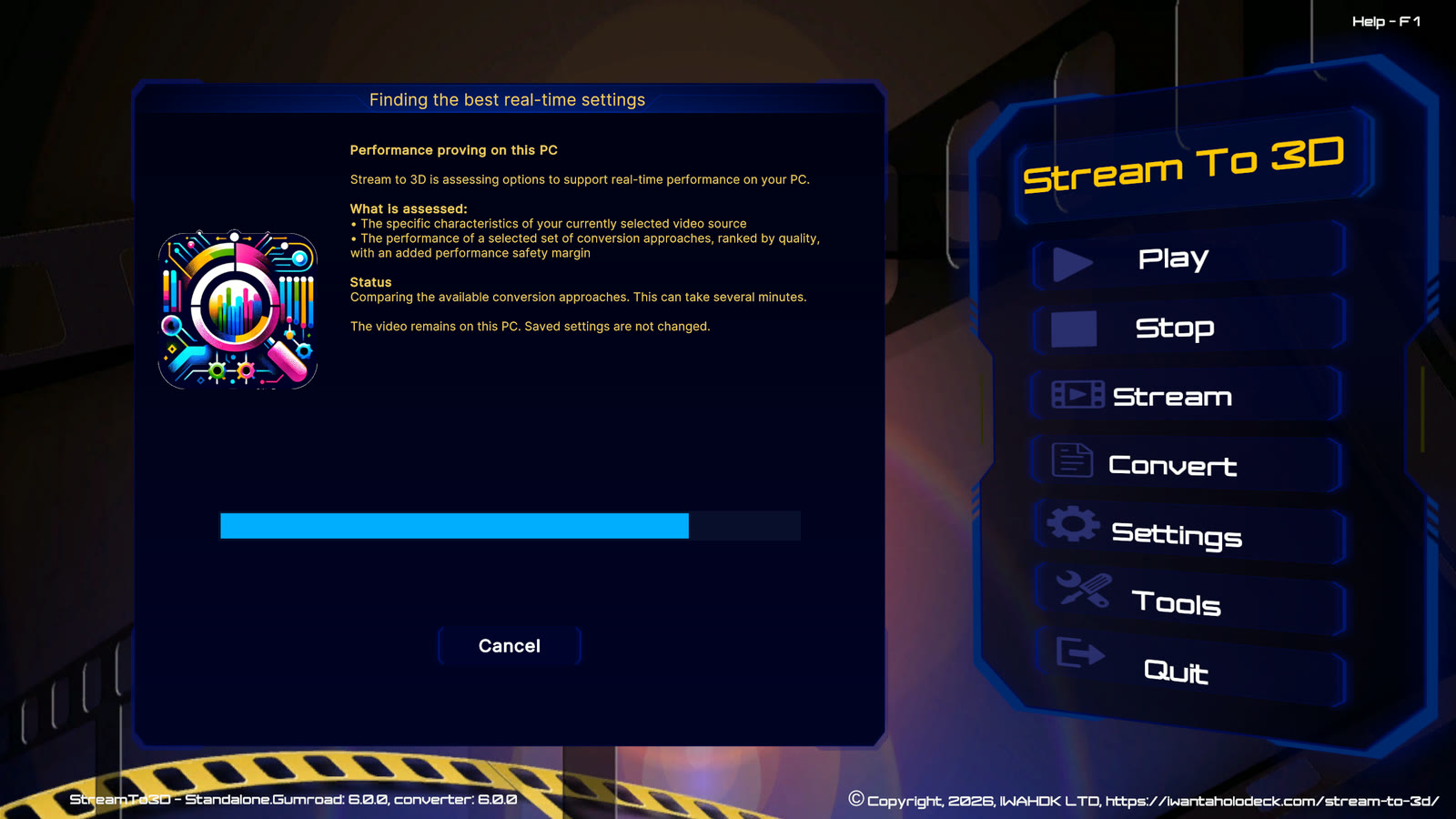
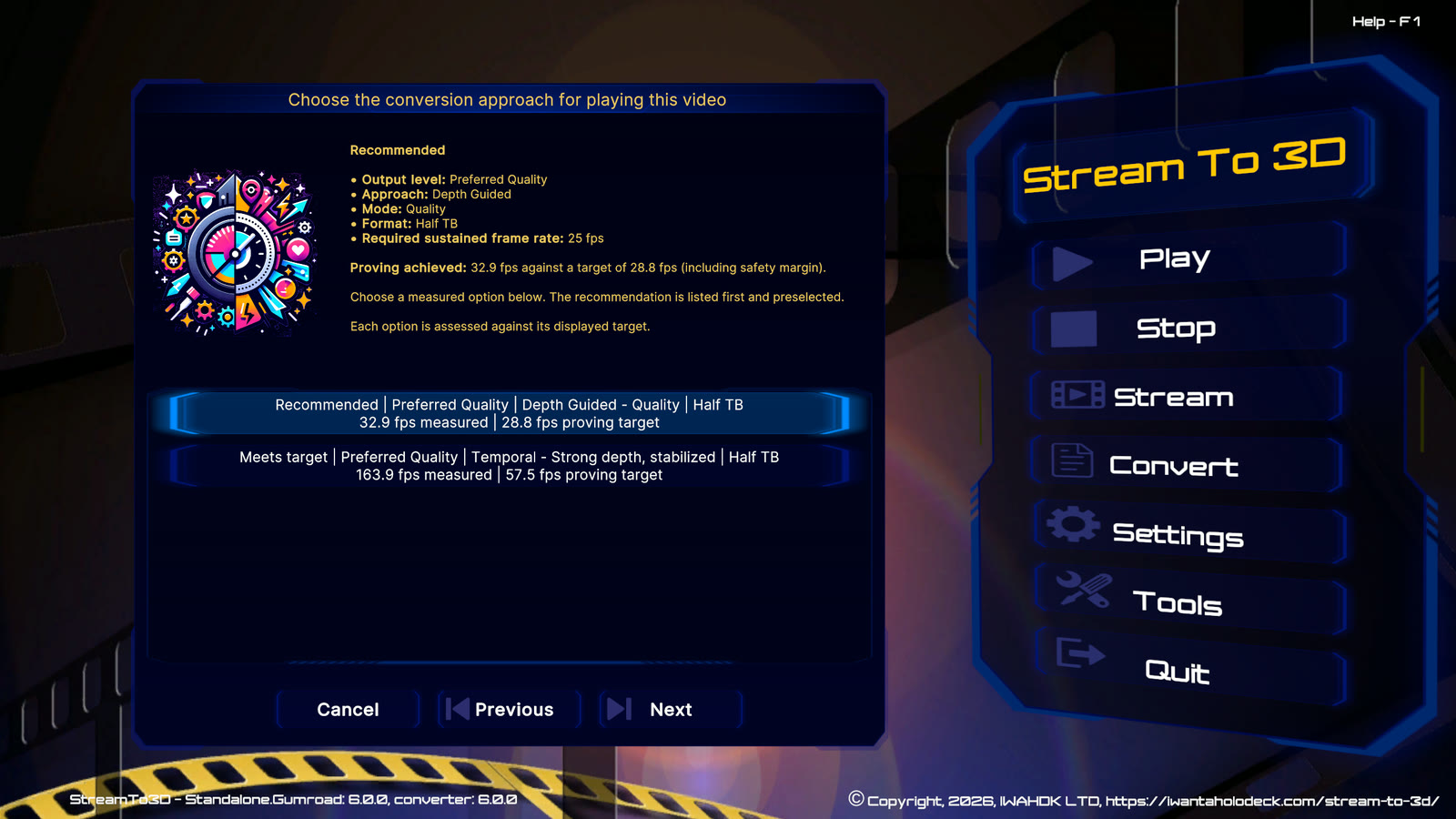
The target includes a safety margin for normal variation after the short check. The Wizard stops after finding a suitable option and keeps the nearest measured alternative visible. A higher measured rate means more performance headroom; it is not a score for perceived 3D quality.
A short performance check is a measurement of the PC at that time, not a permanent rating. Background applications, power mode, temperature and other work using the processor or graphics hardware can change a result between runs. When an option is shown as Near target, it kept pace with the requested frame rate but did not retain the additional safety margin. Connect a laptop to mains power, close other demanding applications and repeat the check when those conditions better represent normal use. A near-target option can also be selected for comparison, but it has less protection against later performance variation.
Temporal and Depth Guided performance
- Temporal is CPU-led and normally provides the broadest real-time hardware coverage. Fractional offsets, stabilization, larger frames and higher output rates add work.
- Depth Guided uses local GPU processing. Quality is more demanding than Performance, and real-time availability depends on the selected source and complete graph rather than the GPU name alone.
- Convert can use either method below real time. Processing rate affects completion time, not whether the output file is valid.
Optional NVIDIA acceleration in Release 6.1
On a compatible Windows 11 PC with recent NVIDIA RTX graphics, Release 6.1 can use optional NVIDIA acceleration for Depth Guided processing. The standard compatible Depth Guided path remains available, and Temporal remains the broadest lower-demand route. Acceleration can materially increase processing capacity without changing the selected Depth Guided mode or stereoscopic format.
If you are evaluating real-time playback, the Real-Time edition includes a one-week trial. Use it with your own video and PC, then let the Configuration Wizard measure the complete Play workload instead of relying on a generic compatibility claim.
Real-time results still depend on the complete workflow. Source decoding, resizing, output-rate interpolation, video encoding, capture, other PC load and network delivery can all affect the final rate. First setup and first use can also take longer than later runs. See Optional NVIDIA Acceleration for Depth Guided.
Resolution and packed format
Full formats keep a larger combined frame and are more demanding. Use one only when the Windows output, receiving player and device can all accept it. Half formats are often the most compatible and reliable starting point.
Upscaled Half is useful when a player requires a Half-labelled layout but the output path can carry a larger frame and retaining more source detail matters. It adds work and provides no benefit when the desktop, player or device scales the result down again.
The Wizard can move to sample-rate or lower-resolution candidates when a higher-quality real-time target cannot be sustained. This is a measured trade-off for the selected source, not a permanent judgement about the PC.
Sample Rate and output frame rate
- A headset refresh setting of 90 Hz or 120 Hz is not the video frame rate. A 24, 25 or 30 FPS source can be displayed while the headset refreshes more frequently.
- Sample Rate is the rate at which the input is used for 3D conversion. Output can remain at that rate or request additional frames.
- Higher output rates add processing work. They are valuable only when the complete workflow and intended player can use them reliably.
- Depth Guided Quality is assessed without automatically requiring frame-rate doubling; Temporal high-quality candidates can include it where its smoothing benefit is useful.
Encoding and graphics drivers
- Stream and Convert need the encoding application to be detected in Settings > Tools.
- Graphics-accelerated encoding is separate from the Depth Guided conversion method. Stream to 3D reports both the 2D-to-3D method and whether video encoding uses the GPU.
- Compatible NVIDIA or AMD encoding requires a suitable graphics driver. Update the driver or use software encoding when a compatibility error is reported.
Network and receiver limits
- A successful Stream performance result proves the PC conversion and encoding workload measured by Stream to 3D; it does not prove Wi-Fi, the receiving player's decoder or the display route.
- Start with HTTP and AVC for broad receiver compatibility, and use the current URL shown by Stream to 3D.
- Prefer Ethernet for the Windows PC where practical. Keep the receiving device on the same local network and avoid VPN routes while diagnosing.
- If video buffers or fails only on the receiving device, reduce bitrate/resolution and use Streaming first checks.
Live and screen capture
- Live Sources must be processed as frames arrive. Reduce the capture frame rate or captured region when the selected configuration cannot keep pace.
- The Wizard keeps the Stream to 3D window visible while measuring a screen source, even if the actual capture session will minimise it.
- Changing the device format, capture rate, screen region or important output settings can invalidate previous evidence and require another short check.
Before contacting support
Include the store and Stream to 3D version, Play/Stream/Convert workflow, source type, selected method and mode, output format, Wizard Summary/Details screenshot, and the relevant logs. For Stream, also say whether the URL worked on the same PC and over the local network.