
Stream converted 3D video to Pigasus on Meta Quest
Pigasus can receive a Stream to 3D network stream directly on a Meta Quest headset or play a converted stereoscopic file from headset storage or a Windows/Samba share. The Windows PC performs the 2D-to-3D conversion in each route.
For all currently documented player and display routes, see Players and 3D Displays.
How the route works
2D source → Stream to 3D Stream on Windows → HTTP on the local network → Pigasus URL Streaming → matching 3D mode on Quest
This uses the Stream workflow, not Play. Pigasus is receiving encoded video rather than showing the Windows desktop.
Quick start
- Connect the Windows PC and Quest headset to the same local network.
- In Stream to 3D, select Stream and choose a short familiar 2D video.
- Use Compare and recommend if you want the Wizard to measure the complete conversion and encoding workload.
- Start with HTTP, AVC and a layout Pigasus supports. Half SBS is the conservative first test; the accepted Release 6 demonstration used Full SBS.
- Start the stream and note the complete private-LAN URL shown by Stream to 3D.
- In Pigasus, choose URL Streaming, enter that URL and open it.
- Select the Pigasus stereo mode matching the Stream to 3D report: Full SBS, Half SBS or the corresponding Over-Under option.
If the PC changes from Ethernet to Wi-Fi, joins a VPN or receives another local address, use the newly displayed URL. Stream to 3D waits for the HTTP receiver to connect before sending the programme.
Converted files from local storage or Samba
Pigasus has also successfully played Stream to 3D output copied to Quest storage and opened through a Windows/Samba share. Use Convert, choose a layout Pigasus supports, then either copy the completed file to the headset or share its folder from Windows and browse that share in Pigasus.
This is separate from URL Streaming. A local or Samba file remains available for replay and does not require the Stream workflow to stay active.
Use the method that meets the Stream target
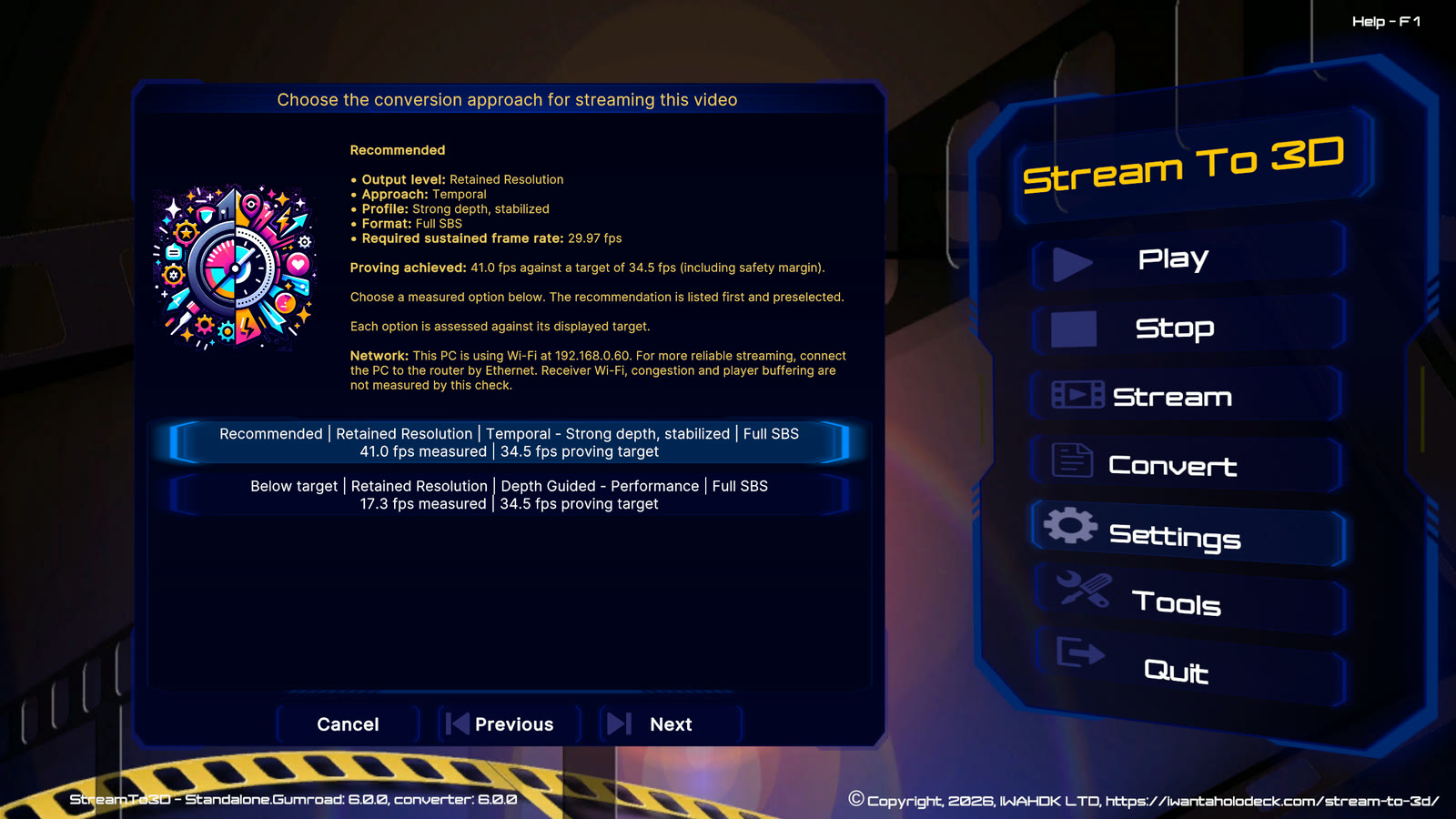
For the recorded Release 6 example, the Wizard measured Temporal at 41.0 fps against a 34.5 fps safety target. Depth Guided Performance reached 17.3 fps, so Temporal was the correct recommendation for that source, output and PC.
That result is deliberately source-specific. Temporal and Depth Guided are complementary. A newer GPU, optional NVIDIA acceleration, lower output demand or different source can change what is sustainable, but the receiving player does not decide which method is visually or operationally appropriate.
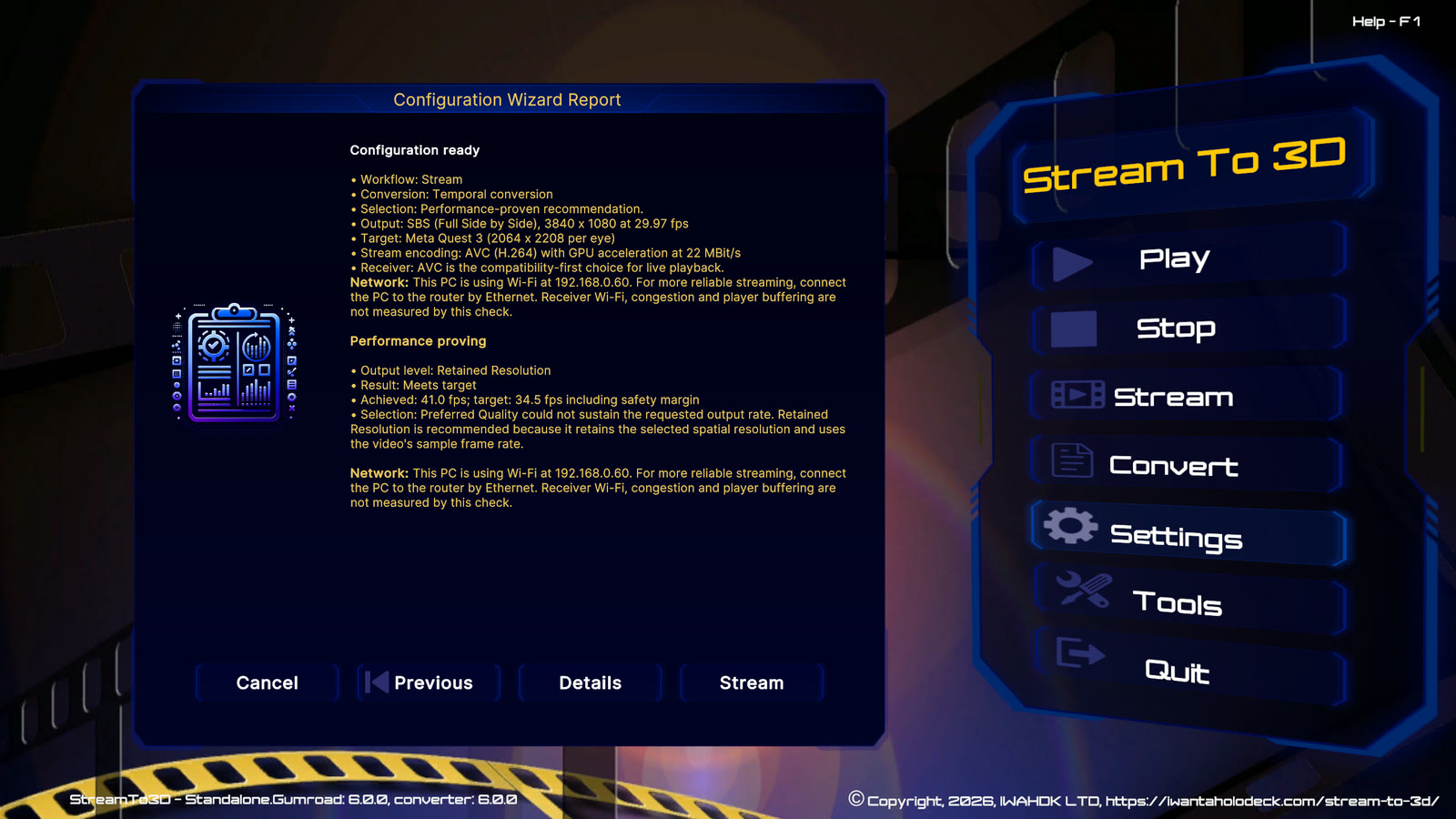
The resulting report records the selected method, output layout, resolution, frame rate and encoding settings. Match Pigasus to the layout shown here rather than assuming that every stream uses the same option.
Release 6 illustrated walkthrough
The screenshots below document the complete setup, including the Wizard and URL-entry stages that are not present in the headset recording.
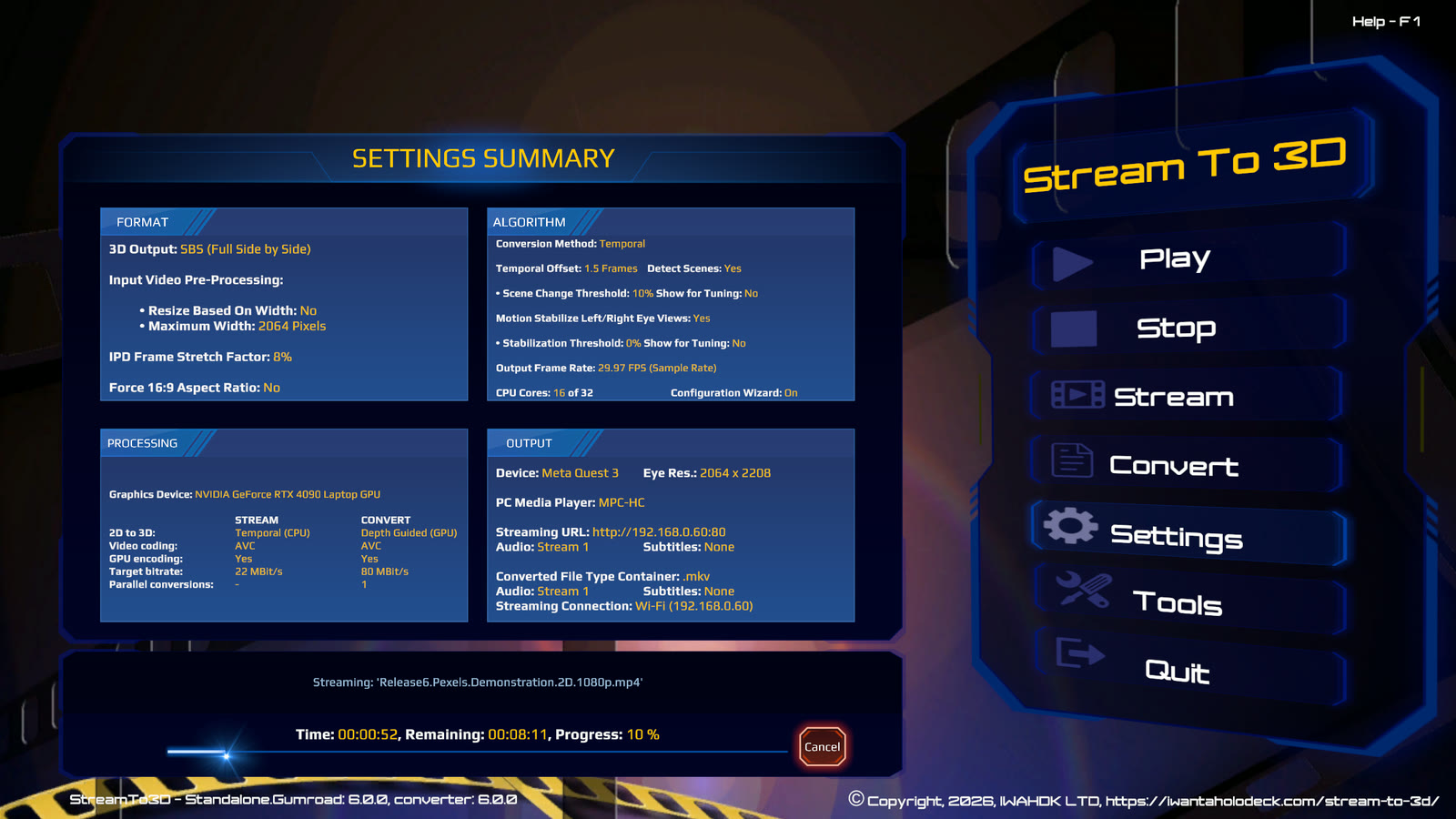
1. Start the HTTP stream
Select Stream, choose the source video and start the stream. Stream to 3D displays the private-LAN HTTP URL and waits for Pigasus to connect. Keep this screen available while completing the headset steps.
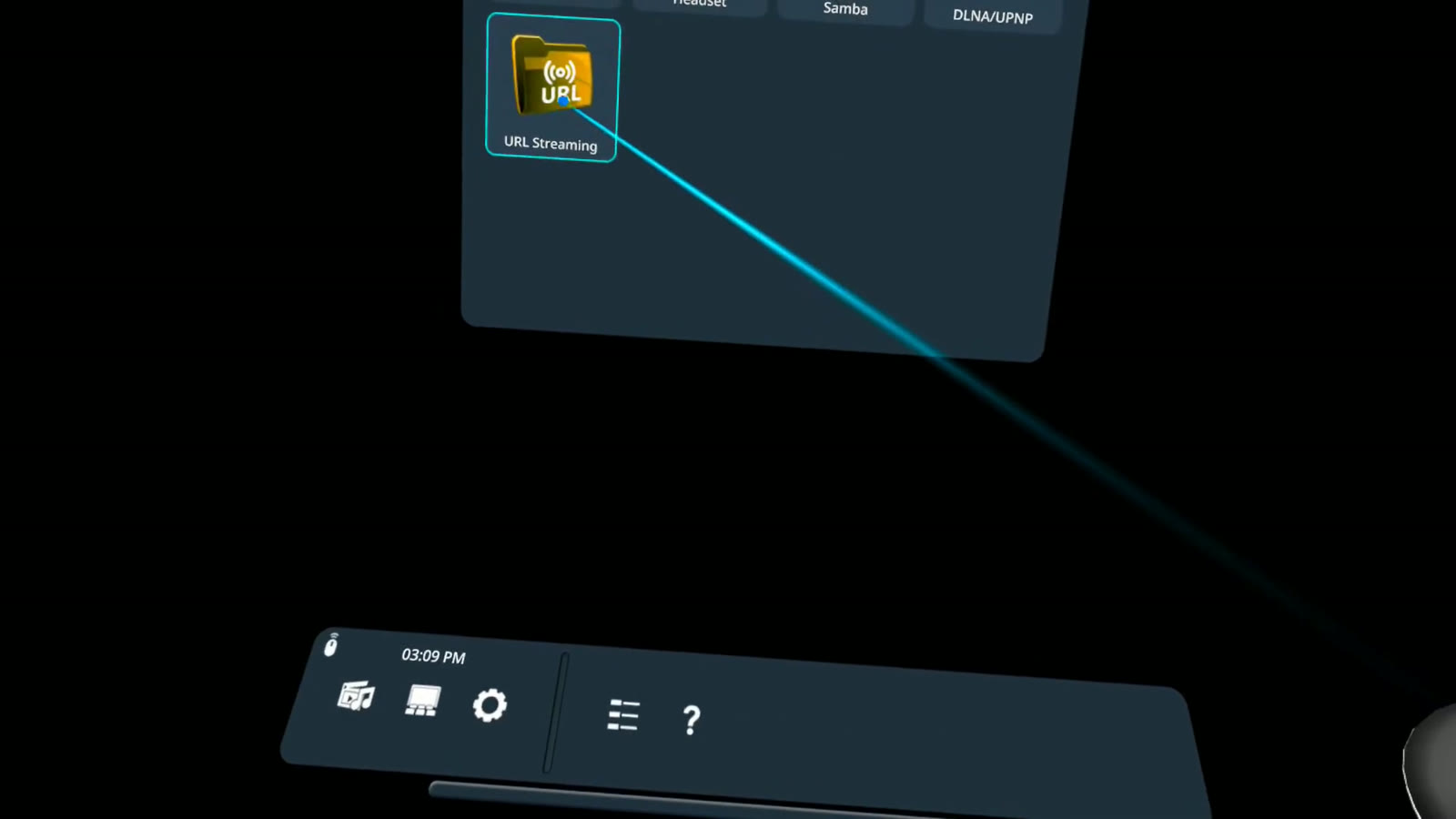
2. Choose URL Streaming in Pigasus
On the Meta Quest, open Pigasus and select URL Streaming.
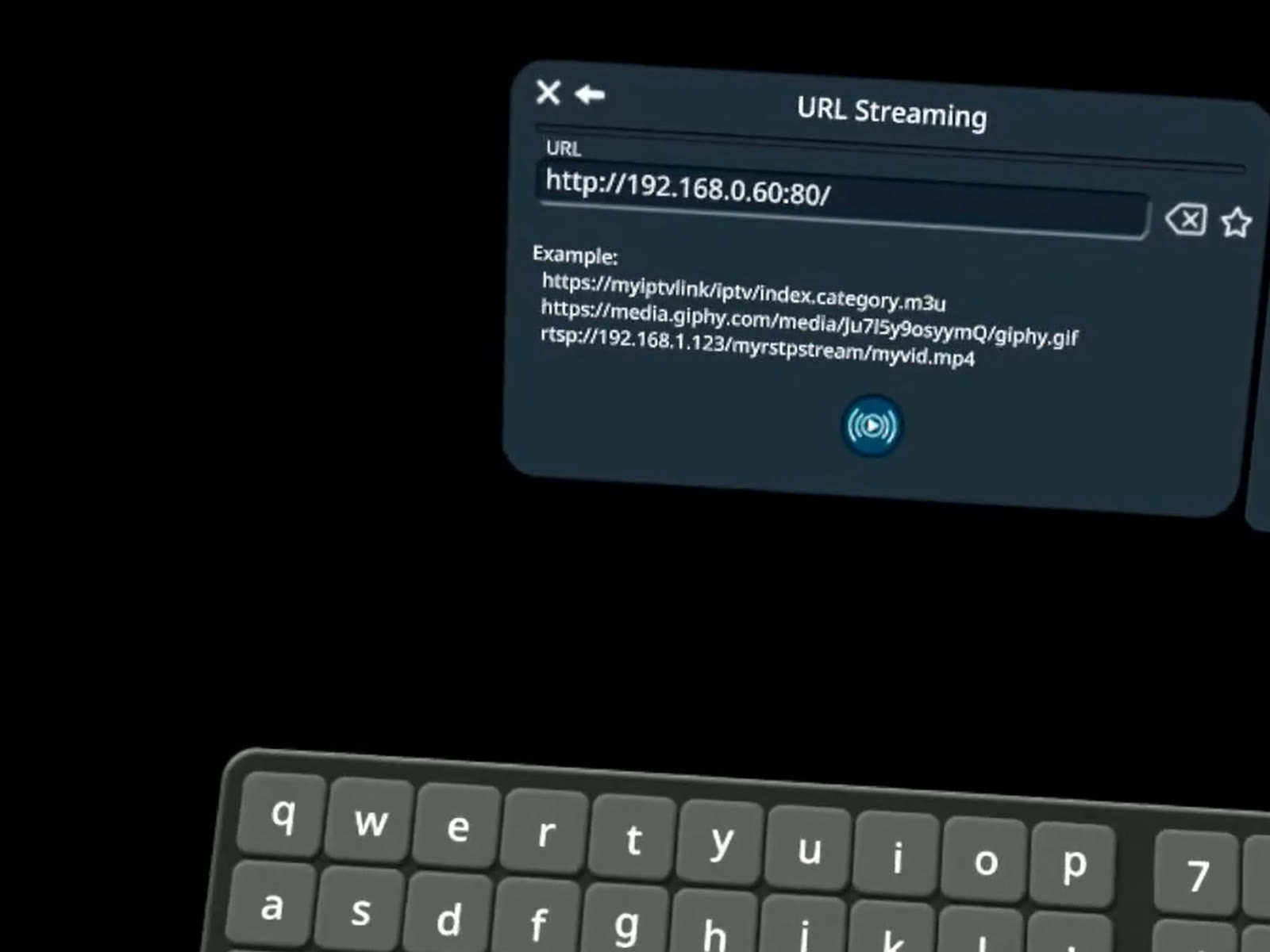
3. Enter the Stream to 3D URL
Enter the complete URL displayed by Stream to 3D, including http://, the Windows PC's local address and the port. If the PC changes between Wi-Fi and Ethernet, joins a VPN or receives a different local address, enter the newly displayed URL.
4. Match the stereo layout
When playback starts, choose the Pigasus stereo option matching the Wizard report. The demonstrated route uses Stereo: Full Side by Side. Select Half SBS or the corresponding Over-Under option when Stream to 3D reports a different layout.
The headset recording shows the Pigasus playback portion, including selection of Full Side by Side. It does not show the Wizard or Pigasus URL-entry steps; those are documented in the screenshots above. A flat recording cannot reproduce the depth seen separately by the viewer's two eyes.
Troubleshooting
- Pigasus cannot connect: test the current HTTP URL in VLC on the Windows PC, then check that both devices are on the same LAN and Windows Firewall allows the selected port.
- The stream opens but stutters: rerun the Wizard for Stream, reduce output demand and check the Wi-Fi path separately.
- The picture is doubled: select the Pigasus stereo mode matching the reported output layout.
- The aspect ratio is wrong: check Full versus Half and return player scaling to its normal or best-fit mode.
- The URL used to work: copy the currently displayed URL after a network or VPN change.
Use Streaming first checks for sender, firewall, network and receiver diagnosis. Inspect Release 6 examples, review the User FAQ, or compare editions and purchase options.