
VLC Playback and Resume Settings
Automatic full-screen playback
When you use Play with VLC selected, Stream to 3D starts VLC with its full-screen option and places the player on the display where Stream to 3D is running. You do not need to enable VLC's Fullscreen video preference to make this happen.
Press F while VLC is open to leave or return to full-screen. VLC must also have its Stream to 3D playback integration configured before it can be used with Play.
Optional resume setting
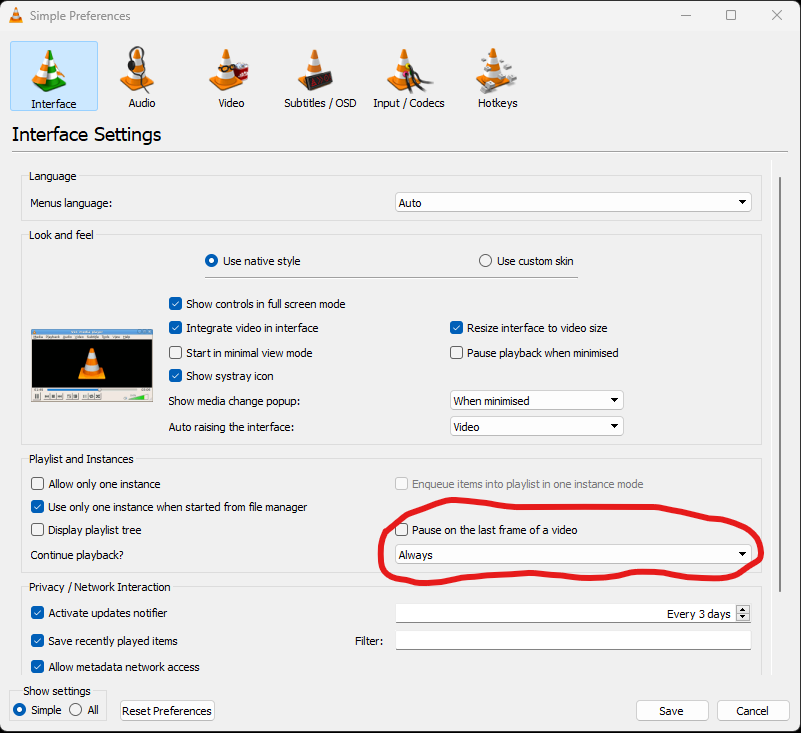
To control whether VLC resumes a video, open Tools > Preferences > Interface and choose the required Continue playback? setting:
Return to Play 2D Video in 3D for the complete playback workflow.